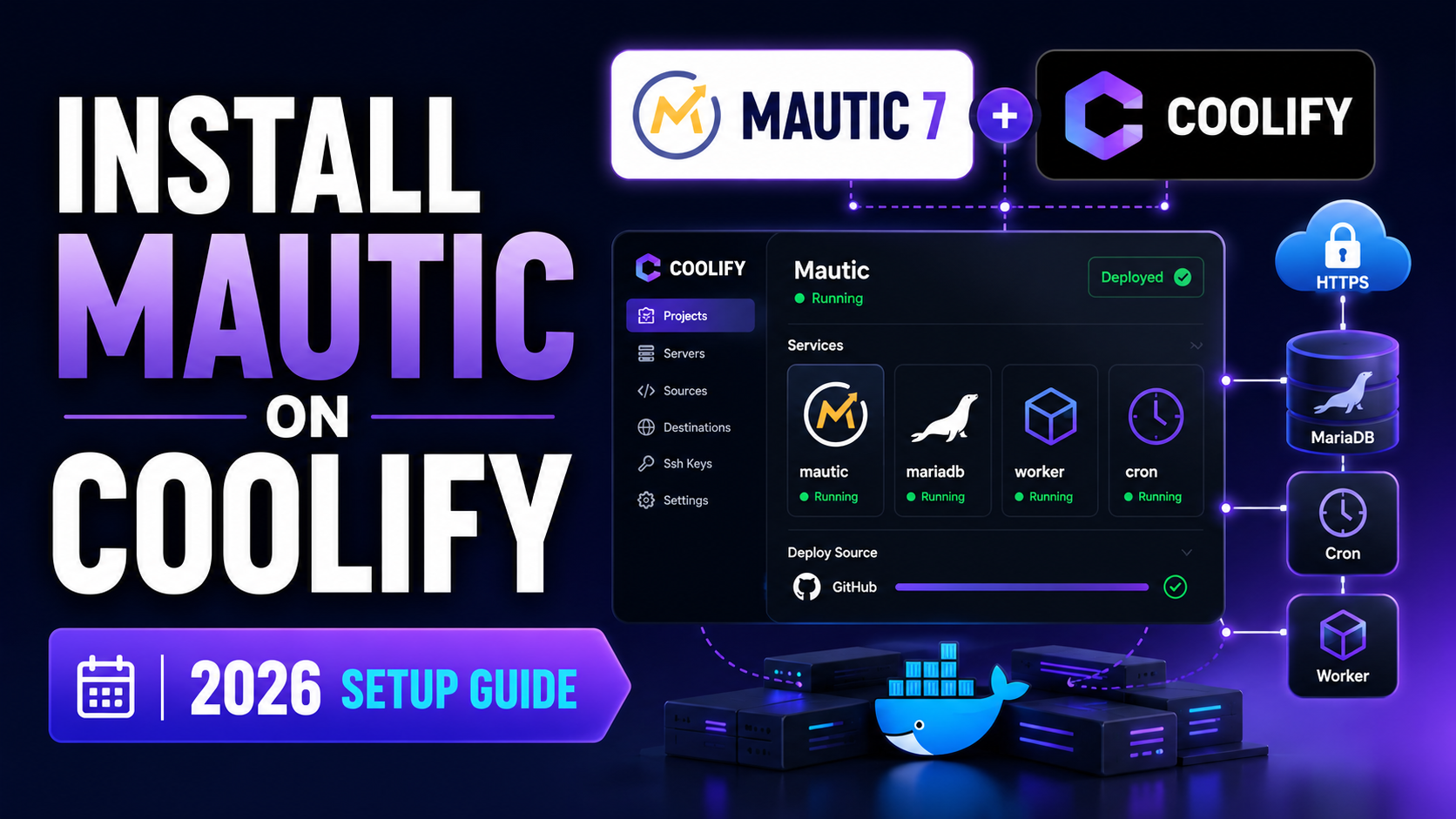
Install Mautic 7 on Coolify in 5 Minutes (2026 Setup)
A practical, production-minded walkthrough for deploying Mautic 7 on Coolify with Docker Compose, MariaDB, automatic HTTPS, a dedicated cron container, and a queue worker — without relying on an outdated one-click template.
TL;DR: the fast path
- Create a blank Docker Compose resource in Coolify.
- Paste the four-service Compose stack from this guide.
- Add the MariaDB database name, user, and two strong passwords.
- Point a subdomain such as
mautic.example.comto your VPS. - Assign that HTTPS domain to the Mautic web service and deploy.
- Finish the Mautic admin wizard, connect SMTP, then configure backups.
Key facts before you deploy
Why use Docker Compose for Mautic on Coolify?
Mautic is more than a single PHP website. A reliable installation needs a web process for the dashboard, scheduled jobs for campaigns and segments, a background worker for queued jobs, and a database that all of those services can reach consistently.
That is why this guide uses an explicit Docker Compose stack instead of treating Mautic like a one-container WordPress install. The advantage is predictability: each job has one responsibility, the services restart independently, and Coolify still handles deployment, networking, logs, domains, and the reverse proxy.
Before you start
You should already have the following in place:
- A VPS with Coolify installed and accessible.
- A domain or subdomain you control.
- DNS access so you can create an A record pointing to the VPS.
- At least 2 GB of free RAM; 4 GB is a better production starting point.
- An SMTP provider or a self-hosted mail server if you want to actually deliver campaigns.
The Mautic architecture you are deploying
All three Mautic services use the same Docker image, but each container has a different role. The database stores contacts, campaign data, settings, and Doctrine queue records. Coolify’s proxy only exposes the web container to the internet.
Web
mautic_web
Serves the dashboard, tracking endpoints, forms, landing pages, API requests, and browser traffic.
Cron
mautic_cron
Runs scheduled work such as campaign triggers, segment updates, scheduled sends, and maintenance tasks.
Worker
mautic_worker
Processes asynchronous jobs so heavy work does not block the web request that created it.
The cron service works alongside this flow by continuously triggering scheduled Mautic jobs.
Doctrine queue or RabbitMQ?
| Question | Doctrine / database queue | RabbitMQ |
|---|---|---|
| Extra service needed? | No | Yes |
| Operational complexity | Low | Higher |
| Best fit | Single VPS and normal self-hosted workloads | Large, heavily queued installations |
| Failure points | Mostly the same database dependency Mautic already has | Adds a separate broker to monitor and back up operationally |
| My default choice | Start here | Move only when metrics justify it |
1Create a Docker Compose resource in Coolify
Open your Coolify project, click + New, and choose the empty Docker Compose option.
Name the resource something simple such as mautic.
Project: marketing
Resource: mautic
Public hostname: mautic.yourdomain.com
2Paste the Docker Compose stack
This version deliberately avoids custom Docker networks. Coolify creates and manages the deployment network and connects its proxy to it automatically.
services:
  db:
    image: mariadb:11.4
    restart: unless-stopped
    environment:
      MYSQL_DATABASE: ${MYSQL_DATABASE}
      MYSQL_USER: ${MYSQL_USER}
      MYSQL_PASSWORD: ${MYSQL_PASSWORD}
      MYSQL_ROOT_PASSWORD: ${MYSQL_ROOT_PASSWORD}
    volumes:
      - mautic_db:/var/lib/mysql
    healthcheck:
      test: ["CMD", "healthcheck.sh", "--connect", "--innodb_initialized"]
      interval: 10s
      timeout: 5s
      retries: 10
      start_period: 20s

  mautic_web:
    image: mautic/mautic:7-apache
    restart: unless-stopped
    expose:
      - "80"
    environment:
      DOCKER_MAUTIC_ROLE: mautic_web
      DOCKER_MAUTIC_RUN_MIGRATIONS: "true"
      MAUTIC_DB_HOST: db
      MAUTIC_DB_PORT: 3306
      MAUTIC_DB_DATABASE: ${MYSQL_DATABASE}
      MAUTIC_DB_USER: ${MYSQL_USER}
      MAUTIC_DB_PASSWORD: ${MYSQL_PASSWORD}
      PHP_INI_VALUE_MEMORY_LIMIT: 512M
      PHP_INI_VALUE_UPLOAD_MAX_FILESIZE: 128M
      PHP_INI_VALUE_POST_MAX_FILESIZE: 128M
    volumes:
      - mautic_config:/var/www/html/config
      - mautic_logs:/var/www/html/var/logs
      - mautic_media_files:/var/www/html/docroot/media/files
      - mautic_media_images:/var/www/html/docroot/media/images
    depends_on:
      db:
        condition: service_healthy

  mautic_cron:
    image: mautic/mautic:7-apache
    restart: unless-stopped
    environment:
      DOCKER_MAUTIC_ROLE: mautic_cron
      MAUTIC_DB_HOST: db
      MAUTIC_DB_PORT: 3306
      MAUTIC_DB_DATABASE: ${MYSQL_DATABASE}
      MAUTIC_DB_USER: ${MYSQL_USER}
      MAUTIC_DB_PASSWORD: ${MYSQL_PASSWORD}
    volumes:
      - mautic_config:/var/www/html/config
      - mautic_logs:/var/www/html/var/logs
      - mautic_media_files:/var/www/html/docroot/media/files
      - mautic_media_images:/var/www/html/docroot/media/images
    depends_on:
      - mautic_web

  mautic_worker:
    image: mautic/mautic:7-apache
    restart: unless-stopped
    environment:
      DOCKER_MAUTIC_ROLE: mautic_worker
      MAUTIC_DB_HOST: db
      MAUTIC_DB_PORT: 3306
      MAUTIC_DB_DATABASE: ${MYSQL_DATABASE}
      MAUTIC_DB_USER: ${MYSQL_USER}
      MAUTIC_DB_PASSWORD: ${MYSQL_PASSWORD}
    volumes:
      - mautic_config:/var/www/html/config
      - mautic_logs:/var/www/html/var/logs
      - mautic_media_files:/var/www/html/docroot/media/files
      - mautic_media_images:/var/www/html/docroot/media/images
    depends_on:
      - mautic_web

volumes:
  mautic_db:
  mautic_config:
  mautic_logs:
  mautic_media_files:
  mautic_media_images:
Why this Compose file is structured this way
- Only the web container is public. MariaDB does not need a public host port.
- All Mautic roles share the same persistent config and media volumes.
- MariaDB gets its own persistent data volume. Recreating a container does not erase your database.
- The database healthcheck runs before the web app begins depending on it.
- The Apache image is easy to route through Coolify because the web service listens on port 80.
3Add the environment variables
In the Coolify resource, open Environment Variables. Add these four values. Use a different, long random password for each password field.
MYSQL_DATABASE=mautic
MYSQL_USER=mautic
MYSQL_ROOT_PASSWORD=replace-with-a-long-random-root-password
MYSQL_PASSWORD=replace-with-a-different-long-random-app-password
Generate a strong password on the server
If you want a fast terminal-based method, run this twice and save each result separately:
openssl rand -hex 32
4Point your domain to the VPS and enable HTTPS
At your DNS provider, create an A record for the subdomain you want to use. A typical setup looks like this:
| Type | Name | Value | TTL |
|---|---|---|---|
| A | mautic | YOUR_VPS_IP | Auto |
Next, return to the Mautic Docker Compose resource in Coolify, select the mautic_web service, and assign a domain in full HTTPS format:
https://mautic.yourdomain.com
When the DNS record resolves to the correct server and the resource is configured with an https://
domain, Coolify’s integrated proxy can route the service and obtain TLS automatically.
5Deploy the stack
Click Deploy and watch the service logs. On the first deployment:
- Coolify pulls MariaDB and the Mautic image.
- MariaDB initializes the new database and passes its healthcheck.
- The Mautic web role starts and performs initial migrations.
- The cron and worker roles start using the same persistent configuration.
- Coolify routes your configured domain to the Mautic web container.
mautic_web stays running,
the cron and worker containers are not crash-looping, and your Mautic URL loads over HTTPS.
Building a bigger self-hosted stack?
Keep related tutorials connected with internal links. This improves navigation for readers and gives search engines a clearer picture of your self-hosting content cluster.
Browse more guides More Coolify tutorials6Finish the Mautic web setup
Open your new Mautic URL in a browser. If the installer appears, complete the environment/database check, create your administrator account, and continue to the dashboard.
Admin account checklist
- Use a unique administrator username.
- Use a long password that is not reused on WordPress, Coolify, or your VPS.
- Use an email address you monitor for account/security notices.
- Do not publish the administrator login URL in screenshots or public tutorials.
If the installer already sees the database correctly, do not change the database host to a public IP.
Inside the Compose stack, the database hostname should remain db.
Connect SMTP so Mautic can send email
Installing Mautic gives you marketing automation software; it does not automatically give you a high-quality outbound mail service. You still need a sending provider or your own SMTP infrastructure.
Basic SMTP workflow
- Open Mautic settings.
- Go to the email configuration area.
- Enter the SMTP/transport credentials supplied by your provider.
- Save the settings and use Mautic’s connection test.
- Send a test message to an inbox you control.
Back up your Mautic installation
A proper backup plan has two parts: database backups and persistent Mautic files. The database is the most important piece because it contains contacts, campaign state, configuration, and historical records.
1. Schedule database backups
In Coolify, open the MariaDB service and configure scheduled backups. An off-server S3-compatible destination is preferable to keeping every copy on the same VPS.
2. Protect persistent volumes
Your Docker volumes contain Mautic configuration, logs, and uploaded media. Include those volumes in your server-level snapshot or volume-backup strategy.
3. Test restoration
A backup you have never restored is only a theory. Periodically restore a recent database backup into a test environment and confirm Mautic can read it.
Production security checklist
Once Mautic is working, harden the surrounding server before collecting real subscriber data.
- Use SSH keys and disable password-based root login when your access workflow is tested.
- Keep Coolify, your operating system, Mautic, and MariaDB updated on a controlled schedule.
- Use unique secrets for Mautic, MariaDB, Coolify, SMTP, and your VPS provider.
- Do not expose MariaDB’s port publicly unless you have a specific and secured reason.
- Enable MFA/2FA wherever supported.
- Store off-site backups and test them.
- Use HTTPS only for the public Mautic domain.
- Monitor disk usage; Mautic logs and Docker images can grow over time.
- Protect forms and lists from abuse, and follow applicable email/consent rules.
Common Mautic + Coolify problems
Database connection failed
Confirm the database container is healthy and make sure every Mautic role uses the same database variables.
The internal hostname should be db, not your VPS IP.
The site loads over HTTP but HTTPS fails
Confirm that the domain is entered in Coolify with the https:// prefix, DNS points to the correct
server, and ports 80/443 can reach the Coolify proxy. Then redeploy or retry certificate provisioning.
Cron tasks appear to do nothing
Open the mautic_cron logs. If the container is restarting, compare its database environment
variables with the web service. A wrong password or database name can make the UI work while cron fails.
The worker is not draining queued jobs
Inspect the mautic_worker logs. Database connectivity is the first thing to verify because the
Doctrine queue depends on the same database used by Mautic.
Uploads fail or large imports stop
Review PHP memory, upload, and POST limits. This guide sets higher values on the web container, but large CSV imports may still require tuning based on your VPS size and workload.
502 / 504 gateway errors
Check whether mautic_web is actually running and whether it listens on port 80. Avoid adding a
custom Docker network unless you understand how it interacts with Coolify’s proxy network.
Disk space keeps shrinking
Check Docker images, build cache, Mautic logs, database growth, and backup retention. Configure sensible log rotation and remove old backups only after confirming off-site copies exist.
Frequently asked questions
Can I install Mautic 7 on Coolify without Docker Compose?
You can deploy containers in several ways, but Compose is a practical choice because Mautic’s web, cron, worker, and database services belong together and can be managed as one stack.
Do I need RabbitMQ?
Not for a typical single-VPS Mautic setup. Starting with the database-backed Doctrine queue keeps the stack smaller. Add a dedicated message broker only when your real workload and measurements justify it.
How much RAM should I give Mautic?
Two gigabytes of genuinely free RAM is a practical minimum for testing. For a server that also runs Coolify and other services, 4 GB or more gives you much more breathing room.
Can Mautic send email without an SMTP provider?
Mautic needs a working transport for outbound email. You can use a managed SMTP/email provider or operate your own sending infrastructure, but deliverability and reputation still need to be managed.
Should I expose the MariaDB port publicly?
Usually no. The Mautic containers can reach MariaDB over the internal Compose network. Public database exposure adds unnecessary attack surface unless you have a specific remote-access requirement.
What should I back up first?
Start with the MariaDB database, then make sure the persistent Mautic config/media volumes are also covered. Keep at least one recent backup off the VPS.
Can I upgrade from Mautic 6 to Mautic 7 by changing the image tag?
Treat major upgrades as migrations, not casual image swaps. Read the current Mautic upgrade notes, verify database and PHP requirements, take tested backups, and stage the upgrade before doing it on production.
Build a useful internal-link cluster around this guide
A tutorial like this becomes more useful — for readers and for SEO — when it is connected to supporting pages. Good companion articles include installing Coolify, hardening a VPS, deploying MinIO, configuring SMTP, Docker backup strategies, and troubleshooting reverse-proxy errors.
Useful official resources
Check the source projects before a major upgrade because Docker tags, platform requirements, and deployment behavior can change over time.
Mautic Docker Coolify Compose Docs Coolify Domain DocsEditorial note: software changes quickly. Verify Mautic and Coolify release notes before production upgrades. This article is educational and does not replace security, compliance, or email-deliverability advice.