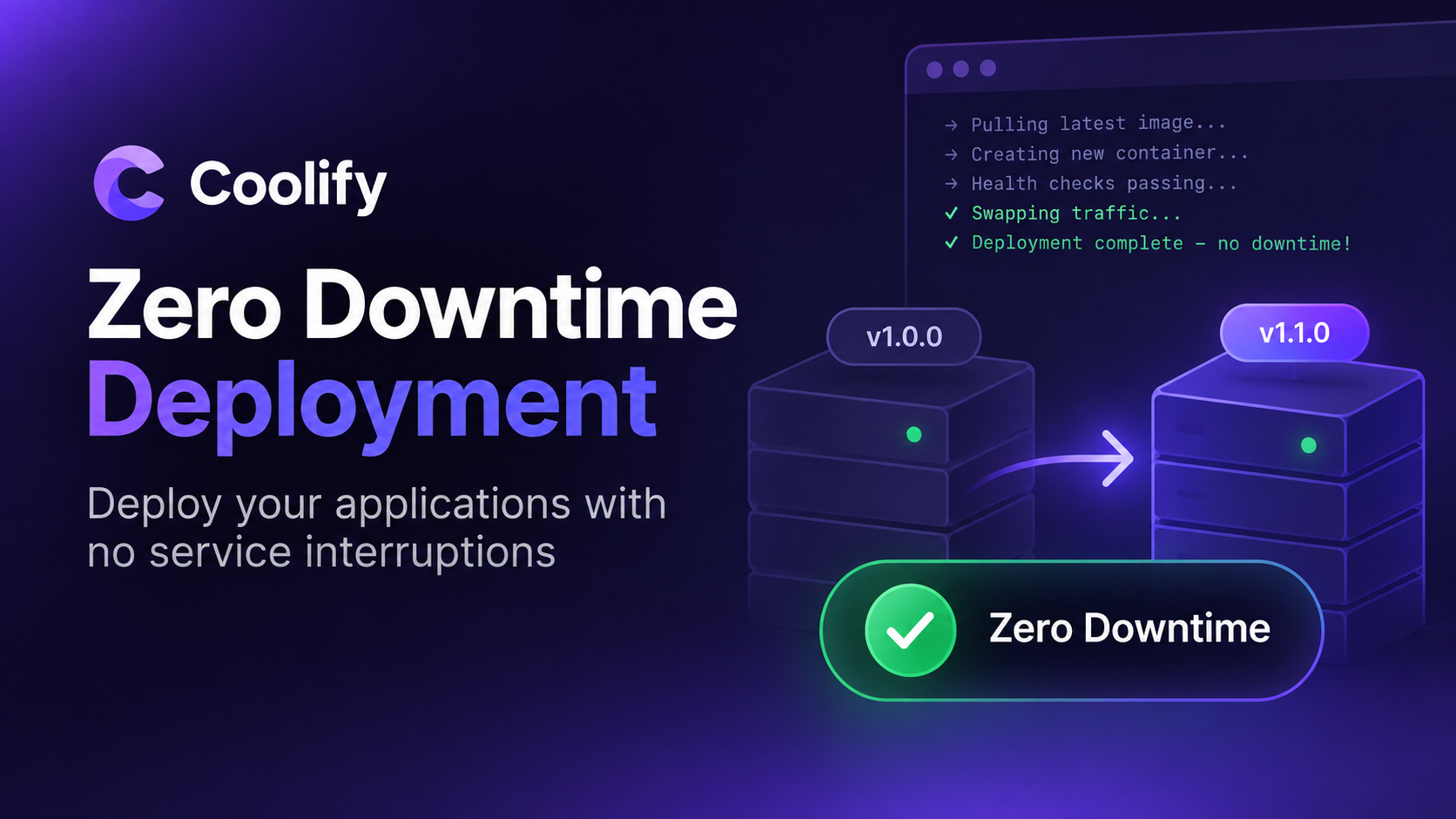
How to Get Near Zero-Downtime Deployments on Coolify in 2026
Coolify can perform rolling deployments, but that does not automatically mean every deployment is invisible to your visitors. If the replacement container receives traffic before it is actually ready, you can still see 502 errors, 503 responses, or the familiar “no available server” message during a release.
This guide shows a practical way to reduce that deployment gap: first by giving Coolify a trustworthy readiness signal, then by making sure your container can coexist with the old version, and finally by tightening the Traefik behavior that handles the brief handoff between containers.
TL;DR
For a Coolify application to roll safely, the new container must be allowed to start beside the old container and must report healthy only when it can genuinely serve traffic. Avoid custom container names and host port mappings for the application. Docker Compose applications are a different deployment path and should not be treated as application-level rolling deployments.
A strong baseline is: readiness endpoint + tuned Docker HEALTHCHECK + graceful shutdown + Traefik retry behavior. Test the result from another machine instead of assuming that a successful deployment log means zero failed requests.
What you will have when you finish
- A repeatable way to measure whether users experience failed requests during a deployment.
- A Docker health check that waits for your application instead of marking it healthy too early.
- A Coolify configuration that allows old and new application containers to overlap.
- A Traefik retry layer that can absorb short connection failures during the handoff.
- A clear strategy for applications that currently run inside Docker Compose.
Before you begin
- You should already have Coolify v4 running on a VPS.
- Your application should be deployed as an Application resource using a Dockerfile, image, Nixpacks, Railpack, or another eligible app deployment method.
- You need an endpoint such as
/healthor/readythat returns HTTP 200 only after the app is ready. - Test on a staging app first. Proxy and health-check mistakes can temporarily make an otherwise healthy service unreachable.
Why you can still see errors while Coolify is “rolling” a deployment
The key distinction is running versus ready. Docker can report that a container has started even though the application inside it is still loading configuration, warming caches, connecting to a database, running migrations, importing dependencies, or starting its HTTP listener.
If the proxy begins sending requests to that replacement container during this warm-up period, users can hit a process that is technically alive but cannot answer yet. That is why a deployment can look normal inside Coolify while visitors briefly receive a 502 or 503 from the proxy.
In WordPress you can replace this block with an Image block or an <img> tag.
A 502 Bad Gateway generally points to a proxy that knows about a backend but cannot successfully connect to it. A 503 / no available server more often means Traefik currently has no healthy backend available for that route. Those two symptoms look similar to a visitor, but they suggest different failure points.
Measure the deployment from outside the server
Before changing your configuration, create a simple external probe. Run it from your laptop, another VPS, a monitoring box, or any machine that reaches the application through the same public domain your users use.
Testing from inside the Coolify server can hide routing problems because you may bypass DNS, TLS, Traefik, or the exact public network path. For deployment testing, the outside view is the one that matters.
import time
import urllib.request
import urllib.error
from datetime import datetime, timezone

URL = "https://app.example.com/health"
INTERVAL = 0.10

def stamp():
    return datetime.now(timezone.utc).isoformat(timespec="milliseconds")

while True:
    started = time.perf_counter()
    status = "ERR"
    body = ""

    try:
        with urllib.request.urlopen(URL, timeout=2) as response:
            status = str(response.status)
            body = response.read(200).decode("utf-8", "replace")
    except urllib.error.HTTPError as exc:
        status = str(exc.code)
        body = exc.read(200).decode("utf-8", "replace")
    except Exception as exc:
        body = type(exc).__name__

    latency = (time.perf_counter() - started) * 1000
    print(f"{stamp()}  {status:>4}  {latency:7.1f}ms  {body[:80]}")

    elapsed = time.perf_counter() - started
    time.sleep(max(0, INTERVAL - elapsed))
Start the probe, deploy a small application update, and then look for non-200 responses. Repeat the same test several times. One deployment is not enough to tell you whether a result is consistent.
Establish a baseline before you touch the configuration
Deploy your current application with the probe running. Write down four things: how many requests failed, which status codes appeared, how long the error window lasted, and whether the new version actually became live.
This matters because an incorrectly configured health check can create a misleading result: the site stays online because Coolify keeps the old container, but the new deployment is rejected. From a visitor’s perspective there is no downtime, yet from a release perspective the deployment failed.
Your baseline worksheet
- Deployment method: Dockerfile / image / Nixpacks / Railpack / Compose
- Application startup time: ___ seconds
- Failed requests: ___
- Longest failure window: ___ seconds
- Error type: 502 / 503 / timeout / other
- Did the new release go live? Yes / No
The four conditions that make Coolify rolling updates practical
For an application-level rolling replacement to work, the old and new application instances must be able to exist at the same time. That leads to four important configuration rules.
Coolify needs a readiness signal so it can distinguish “the container started” from “the application can serve traffic.”
Hard-coding a single container name can prevent the old and new instances from coexisting during replacement.
If the old container already owns a host port, the replacement cannot claim the same port until the old one stops. Let the proxy route to the container over Docker networking instead.
Compose follows its own service-reconciliation behavior. Treat it as a different deployment strategy.
Quick Coolify checklist
- Healthcheck enabled and truly representative of readiness.
- No custom
container_namefor the frequently deployed web app. - No
3000:3000,8080:8080, or similar host binding for the app route. - Domain is routed through Coolify’s proxy.
Step 1: add a health check that tests real readiness
The easiest mistake is to create an endpoint that always returns 200. That proves only that a tiny piece of code can respond. It does not necessarily prove that your application can use the database, read the required configuration, or serve the operations your users need.
A better readiness endpoint checks the minimum dependencies required for safe traffic. Keep it fast: a health endpoint should not run an expensive report or a large SQL query on every probe.
Example: Dockerfile health check for a Node, Python, or similar HTTP app
FROM python:3.12-slim

RUN apt-get update \
    && apt-get install -y --no-install-recommends curl \
    && rm -rf /var/lib/apt/lists/*

WORKDIR /app
COPY . .

EXPOSE 3000

HEALTHCHECK --interval=5s --timeout=3s --retries=3 \
  CMD curl -fsS http://127.0.0.1:3000/health || exit 1

CMD ["python", "app.py"]
If your image does not include curl or wget, the health check can fail forever even when the
application itself is healthy. Verify the command manually inside the running container.
curl -i http://127.0.0.1:3000/healthThe response should become 200 only when the service is actually ready for real user requests.
Why a default health check can accidentally block every deployment
Imagine your application normally needs 12 to 18 seconds to boot. If the health check begins too early and Docker counts those expected startup failures against the retry limit, the container can be marked unhealthy before startup has finished. Coolify may then keep the old version and reject the new one.
That behavior is safer than replacing a healthy release with a broken one, but it means your health-check timing must reflect the real boot profile of your application.
Step 2: tune start-period to match your application
Docker’s start-period gives the new container a grace window during startup. Failed checks inside that early
window do not immediately condemn a container that simply needs more time.
HEALTHCHECK \
  --interval=2s \
  --timeout=3s \
  --retries=3 \
  --start-period=25s \
  CMD curl -fsS http://127.0.0.1:3000/health || exit 1
Do not blindly copy 25 seconds. Measure your own worst normal startup time and give yourself reasonable headroom. If an application usually needs 8 seconds, a 15-second start period may be enough. If it performs initialization that can take 40 seconds, a 10-second grace period is obviously too short.
A simple way to estimate the right timing
- Record the timestamp when Docker starts the container.
- Record when the app logs “listening”, “ready”, or an equivalent message.
- Repeat several cold starts.
- Take the slowest normal result and add a safety margin.
- Keep the post-start interval short enough that readiness is detected promptly.
After saving the Dockerfile, deploy again with the external probe running. You should see the old instance remain available until the replacement reports healthy.
Step 3: make graceful shutdown part of the deployment
Readiness solves the start side of the handoff. Graceful shutdown solves the stop side.
When Coolify asks the old container to terminate, your application should stop accepting new work, finish or safely abandon in-flight requests, close connections, and exit inside the configured grace period. If it disappears immediately, a request that was already being served can still be cut off.
Application shutdown checklist
- Handle
SIGTERMrather than treating it as an unexpected crash. - Stop accepting new HTTP connections during shutdown.
- Allow in-flight requests a short time to finish.
- Close database, queue, and cache connections cleanly.
- Avoid long-lived work that cannot tolerate two versions running briefly.
Also think about release compatibility. During a rolling deployment, old and new code can run at the same time. Database migrations should therefore be backward compatible during that overlap. A migration that instantly removes a column still required by the old version can create failures even if your container handoff is perfect.
Step 4: reduce the last proxy handoff gap with Traefik
After a good readiness check, you may still observe an occasional failed request right as the old container disappears. Reverse proxies update their backend view very quickly, but there can still be a tiny interval where a request chooses a backend that has just gone away.
A retry middleware can help when the failure occurs at the connection layer. Instead of immediately returning an error to the visitor, Traefik can retry against another available backend.
Part A: add a retry middleware to the application router
In Coolify, open your application and inspect the generated Traefik labels under the advanced/container-label settings. Router names vary between applications, so do not paste a router name from someone else’s server without checking yours.
traefik.http.middlewares.app-retry.retry.attempts=3
traefik.http.middlewares.app-retry.retry.initialinterval=100ms

# Example only — replace YOUR_ROUTER with the router name Coolify generated.
traefik.http.routers.YOUR_ROUTER.middlewares=gzip,app-retry
Do not accidentally remove existing middleware
If Coolify already attached middleware such as gzip, preserve it in the middleware list. Replacing the entire value with only your retry middleware can remove behavior you intended to keep.
Part B: use a shorter backend dial timeout
Retry logic cannot help quickly if the proxy spends a long time trying to connect to a backend that no longer exists. Traefik’s ServersTransport settings let you define the backend dial behavior. A short dial timeout can make a dead-target failure surface quickly enough for a retry to reach the healthy replacement.
In Coolify’s proxy dynamic configuration area, create a dynamic YAML file. Use a unique name so it is obvious what the file controls.
http:
  serversTransports:
    app-fast-dial:
      forwardingTimeouts:
        dialTimeout: "1s"
Then connect the application’s Traefik service to that transport. Again, the exact generated service name is unique to your resource.
traefik.http.services.YOUR_SERVICE.loadbalancer.serverstransport=app-fast-dial@fileTest proxy changes on staging first
A misspelled router name, service name, provider suffix, or YAML structure can remove a healthy application from routing. Keep an SSH session available and know how to revert the dynamic file or custom label before making proxy changes on an important production service.
Once the retry and transport settings are in place, run your external probe through multiple deployments again. The result you care about is not whether the Coolify dashboard says “deployed”. It is whether real public requests stay successful through the transition.
Put all of your test results in one table
Instead of relying on memory, compare each configuration side by side. Your numbers will differ from another server because boot time, image size, CPU, storage, network performance, application framework, and migrations all change the timing.
| Configuration | What to measure | Typical failure mode | Desired outcome |
|---|---|---|---|
| No readiness check | Failed requests during app startup | Traffic reaches a container that started but is not ready | Baseline only |
| Health check with poor timing | Deployment success + request errors | New release is declared unhealthy before boot completes | Old app stays up, but deployment may fail |
| Tuned health check | Handoff errors at old-container removal | Small connection-level gap | Near-zero visible interruption |
| Tuned check + retry + fast dial | Multiple full deployment cycles | Rare or no connection error | Zero failed requests in repeated testing |
| Docker Compose resource | Full service availability during recreation | Compose reconciliation may interrupt the app | Use a different strategy for strict uptime |
A result worth trusting
Run at least three deployments after every meaningful change. For a high-traffic or business-critical application, test more aggressively: multiple endpoints, concurrent requests, authenticated traffic, slow requests, file uploads, API calls, and any route where losing an in-flight request would be expensive.
Zero downtime is not just a reverse-proxy setting. It is a property of the whole release path: readiness, routing, graceful termination, shared state, schema compatibility, external dependencies, and how the application behaves while two versions briefly coexist.
The Docker Compose limitation: what to do instead
If your application lives inside a Docker Compose resource, do not assume that adding a health check turns it into Coolify’s application-level rolling replacement. Compose is orchestrated differently.
For a blog, internal tool, automation platform, or third-party stack that is updated occasionally, the simplest answer may be to schedule updates during a quiet period. A short planned interruption can be easier to operate than a complicated custom deployment system.
For your own application, split the frequently deployed web service
A practical architecture is to keep slow-changing infrastructure such as PostgreSQL, Redis, and other supporting services in a Compose stack, while deploying the web/API application as its own Coolify Application resource.
Coolify Project
│
├── Infrastructure (Docker Compose)
│   ├── PostgreSQL
│   ├── Redis
│   └── Worker dependency
│
└── Web Application (Dockerfile Application)
    ├── health endpoint
    ├── rolling replacement
    ├── Traefik domain
    └── frequent code deployments
This keeps the part you deploy every day on the deployment path that can overlap old and new containers, without forcing your database to be recreated every time you ship a frontend or API change.
When scheduled Compose downtime is completely reasonable
- WordPress or another third-party stack updated once every few weeks.
- A private internal tool where a short maintenance window is acceptable.
- An automation platform whose workflows can tolerate a brief restart.
- A low-traffic site where engineering a custom blue/green process would add more risk than value.
Recommended next step: build a safe self-hosting stack
Add your own referral or course link here, just like a resource CTA on a long-form technical guide. I left the buttons ready for you to replace with your destination.
Visit Coolify Read My Self-Hosting GuideFrequently asked questions
Does Coolify support zero-downtime deployment?
Coolify supports rolling replacement for eligible application deployments, but zero failed requests is not automatic. Your application still needs a meaningful readiness check, compatible old/new releases, safe shutdown behavior, and a routing configuration that handles the transition cleanly.
Why does my deployment stay online but my new code never appears?
Check the deployment log for a failed health check and rollback. If the application takes longer to boot than the health check allows, Coolify can correctly preserve the old healthy version and reject the replacement. Increase the startup grace period based on measured boot time rather than guessing.
What is the difference between a 502 and “no available server”?
A 502 often means the proxy selected a backend but could not complete the connection. “No available server” indicates that Traefik does not currently have an eligible healthy backend for the route. Logs and health status are the best way to determine the exact cause on your server.
Should I use /health or /ready?
Either path is fine. The important part is the behavior. The endpoint used for deployment readiness should remain unhealthy until the application can safely receive user traffic. Many teams use separate liveness and readiness endpoints so a process can be alive while still warming up.
Can I configure the health check in Coolify instead of the Dockerfile?
Yes. Coolify offers application health-check settings in the interface, and Dockerfile health checks are also supported. Keeping the check in the Dockerfile is convenient when you want the same readiness definition to travel with the image. Whichever method you use, test the exact command inside the container.
Why should I avoid host port mapping?
Rolling replacement requires the old and new containers to exist together. If both versions require the same fixed host port, the second container cannot bind it while the first still owns it. Routing through Traefik and the Docker network avoids that collision.
Does Docker Compose support the same Coolify rolling-update behavior?
No. Docker Compose applications use the Compose deployment/reconciliation path rather than Coolify’s application-level rolling replacement. If strict availability is important for an app you own, consider moving the frequently deployed web service into its own application resource.
How do I know whether my deployment is truly zero downtime?
Measure it from outside the server. Run a request loop against the real production-style domain while you deploy and log status codes, latency, and response bodies. Repeat several times. Manual browser refreshing is too slow to reliably detect sub-second gaps.
Related self-hosting guides
Final deployment checklist
- Public domain works through Traefik.
- Readiness endpoint stays non-200 until dependencies are usable.
- Health-check startup grace is longer than normal worst-case boot time.
- Application is not using a conflicting custom container name.
- Application is not bound to a fixed host port.
- Old and new releases are compatible during their overlap.
- Application handles termination cleanly.
- Retry middleware and custom transport were tested on staging.
- External probe shows the result you expect across multiple deployments.
Technical note: deployment behavior changes over time. Re-check the current Coolify and Traefik documentation before applying production proxy changes, especially after a major Coolify upgrade.