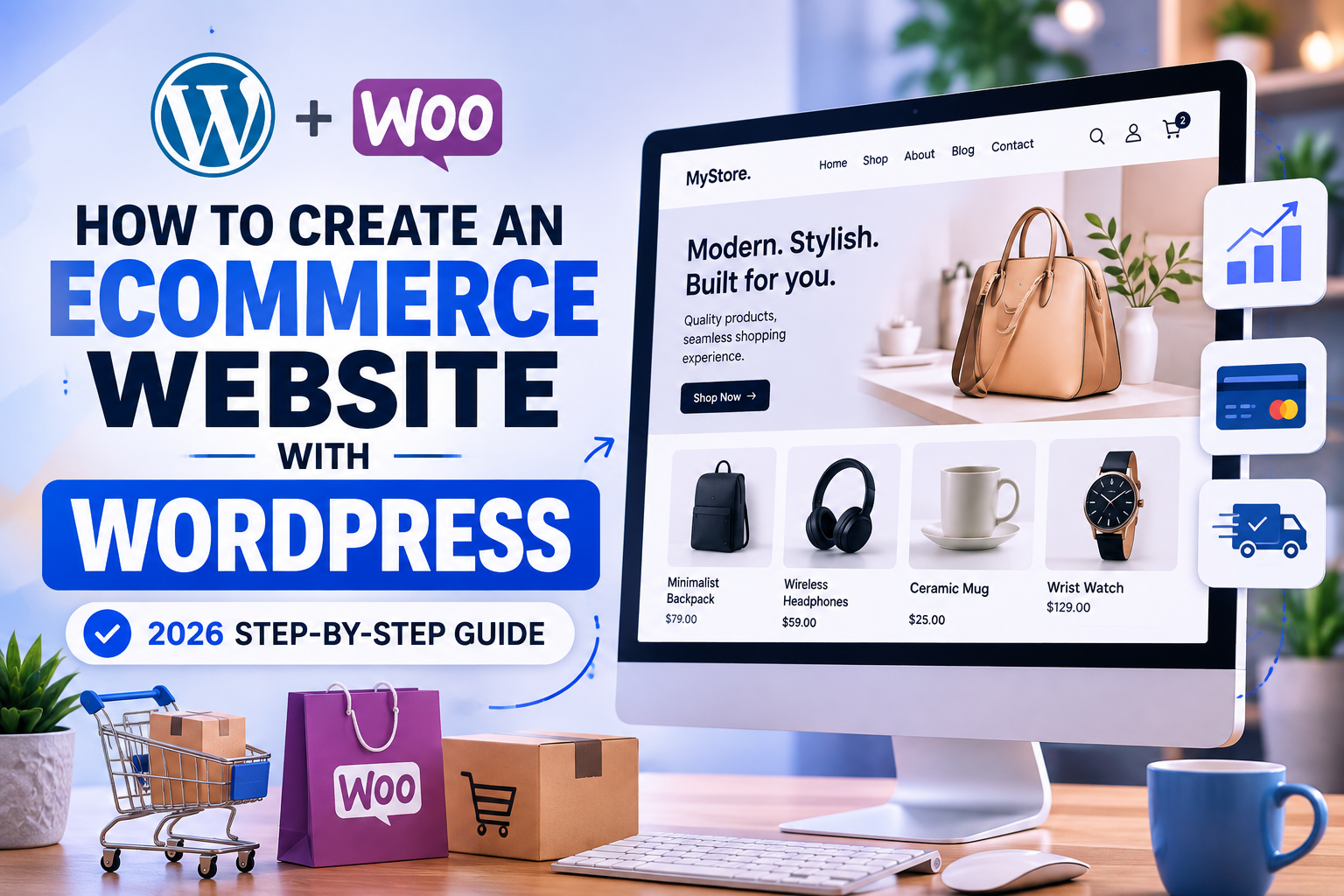
How to Create an eCommerce Website With WordPress in 2026
However, Learn how to build a professional online store with WordPress, WooCommerce, SiteGround hosting, responsive design, payment gateways, shipping, product pages, and SEO — step by step.
Start With SiteGround Start the TutorialImportant Details to Keep in Mind
For example, Building an online store used to require expensive developers and custom coding. WordPress and WooCommerce changed that.
Today, you can create a complete WordPress eCommerce website with product pages, shopping carts, payments, shipping options, inventory management, customer accounts, coupons, and more — without building the entire system from scratch.
Practical Setup Considerations
As a result, This guide walks through the complete process of how to create an eCommerce website with WordPress and turns the main ideas from the referenced video tutorial into a structured, updated written walkthrough for 2026.
Table of Contents
What You Need to Build a WordPress eCommerce Website
Domain
Your store’s web address.
Hosting
The server that keeps your store online.
WooCommerce
The eCommerce engine for WordPress.
A simple beginner-friendly technology stack might include:
| Purpose | Recommended Tool |
|---|---|
| Hosting | SiteGround |
| Website Platform | WordPress |
| Online Store | WooCommerce |
| Theme | OceanWP |
| Page Design | Elementor or WordPress blocks |
| SEO | Yoast SEO, Rank Math, or similar |
Step 1: Get WordPress Hosting With SiteGround
Moreover, Web hosting is where WordPress, WooCommerce, your images, product data, and website files are stored.
Therefore, For this tutorial, we’ll use SiteGround as the recommended WordPress hosting option.
Why Use SiteGround?
- Managed WordPress hosting options
- SSL support
- WordPress installation tools
- WooCommerce-compatible hosting
- Backups and security features
- Caching and performance tools
- Support for growing WordPress sites
Step 2: Choose a Good Domain Name
Your domain name becomes your store’s online identity.
A strong domain should usually be:
- Easy to spell
- Short enough to remember
- Easy to pronounce
- Brandable
- Relevant to your store
Example
Weak: best-cheap-online-electronics-store-2026.com
Better: NovaGear.com
Step 3: Enable SSL and HTTPS
Your online store should load over HTTPS:
https://yourstore.com
SSL encrypts traffic between your website and its visitors and is especially important for checkout forms, login pages, and customer information.
Step 4: Install WordPress
Once your hosting and domain are connected, install WordPress.
After installation, your WordPress dashboard will typically be accessed through:
yourdomain.com/wp-admin
Main WordPress Dashboard Areas
Pages
Create your homepage, About page, Contact page, and other static pages.
Posts
Create blog articles, buying guides, and SEO content.
Plugins
Add WooCommerce and additional functionality.
Appearance
Manage your theme, menus, widgets, and certain visual settings.
Step 5: Configure Basic WordPress Settings
Site Title
Use your brand or business name.
Tagline
Use a short value proposition such as:
Permalinks
Use clean URLs wherever possible.
Instead of: yourstore.com/?p=147
aim for URLs such as: yourstore.com/product/wireless-headphones/
Step 6: Install OceanWP
In practice, OceanWP is a WordPress theme with WooCommerce compatibility and is also the theme used on many flexible WordPress builds.
From WordPress:
For this reason, Once activated, you can use the WordPress Customizer and OceanWP settings to configure layouts, typography, headers, sidebars, and store presentation.
Step 7: Install WooCommerce
WooCommerce transforms WordPress into a complete eCommerce platform.
WooCommerce adds functionality for:
- Products
- Shopping cart
- Checkout
- Orders
- Coupons
- Customer accounts
- Inventory
- Shipping
- Taxes
- Payment gateways
Your hosting affects WooCommerce performance
WooCommerce stores can become database-heavy as your product catalog, visitors, and order volume increase. Choose hosting with room to grow.
View SiteGround HostingStep 8: Configure WooCommerce
WooCommerce will guide you through basic store configuration.
Store Address
Enter the location where your business operates.
Currency
However, Select the currency you want customers to see and use at checkout.
Selling Locations
Decide whether you sell domestically, internationally, or only to selected countries.
Step 9: Create Your First Product
Go to:
For example, Then add your product title, description, price, images, inventory information, and other relevant details.
Write Product Descriptions That Sell
Don’t rely entirely on specifications.
Weak Description
Bluetooth connection. 40mm drivers. Rechargeable battery. Padded earcups.
Better Description
Enjoy music, meetings, and calls without being tied to your desk. Comfortable padded earcups help support longer listening sessions, while wireless connectivity lets you move around more freely.
Use benefits first, then specifications to support the customer’s decision.
Step 10: Add High-Quality Product Images
As a result, Online customers cannot physically inspect the item, so your product photography does much of the selling.
Include images such as:
- Primary product image
- Front and back views
- Side angles
- Close-up detail shots
- Product in use
- Packaging
- Size comparison where useful
Step 11: Configure Product Pricing
Moreover, WooCommerce allows you to set a regular price and, when appropriate, a sale price.
Regular Price: $129.00
Sale Price: $99.00
Therefore, Make sure advertised discounts are legitimate and comply with the consumer pricing rules applicable to your market.
Step 12: Create Variable Products
Variable products are useful when one item has several options.
For example, a T-shirt might offer:
Sizes
- Small
- Medium
- Large
- XL
Colors
- Black
- White
- Blue
- Red
Each variation can have its own price, stock level, SKU, photo, dimensions, and other attributes.
Step 13: Sell Digital Products
WooCommerce can also sell downloadable or virtual products such as:
- eBooks
- Templates
- Digital planners
- Graphic design resources
- Photography files
- Software downloads
- PDF guides
In practice, Configure the product as virtual or downloadable where appropriate so WooCommerce does not treat it like a physical shipment.
Step 14: Configure Shipping
WooCommerce lets you organize shipping by zone.
| Shipping Zone | Example Shipping Method |
|---|---|
| United States | $7.99 flat rate or free shipping over $75 |
| Canada | $14.99 flat rate |
| International | Calculated or destination-based rate |
For this reason, Your actual pricing should reflect your fulfillment company, package sizes, shipping carrier, margins, and target markets.
Step 15: Configure Taxes
Tax settings depend on your business location, customer locations, and legal obligations.
WooCommerce can support settings related to:
- Tax-inclusive or tax-exclusive prices
- Location-based taxation
- Shipping taxes
- Tax classes
Step 16: Set Up Payment Methods
However, Your store must have a payment gateway before customers can successfully complete transactions.
Common WooCommerce Payment Options
Card Payments
Typically handled through a compatible processor such as Stripe.
PayPal
Available in supported countries and merchant accounts.
Other Gateways
Local and regional providers may also integrate with WooCommerce.
For example, Check merchant eligibility, supported countries, fees, payout times, and integration requirements before choosing a gateway.
Step 17: Design Your eCommerce Homepage
Your homepage should guide visitors toward products instead of overwhelming them.
Recommended Homepage Structure
1. Hero Section
Clear headline, supporting copy, and primary Shop Now button.
2. Shop by Category
Display your most important product categories.
3. Featured Products
Highlight products you want visitors to discover.
4. Why Buy From Us?
Explain concrete benefits such as shipping, support, guarantees, or expertise.
5. Best Sellers
Show popular or high-priority items.
6. Customer Reviews
Display authentic customer feedback when available.
7. Helpful Articles
Use blog content to attract organic traffic and educate shoppers.
Step 18: Organize Products Into Categories
Categories become increasingly important as your catalog grows.
Audio
- Headphones
- Wireless Earbuds
- Speakers
Computers
- Laptops
- Monitors
- Accessories
Step 19: Add a Wishlist
Wishlist functionality allows visitors to save products without purchasing immediately.
It can be particularly useful for stores selling:
- Fashion
- Furniture
- Electronics
- Luxury products
- Gifts
Step 20: Create a Simple Navigation Menu
Add important utility links such as My Account and Cart where they are easy to find.
Step 21: Make Your Store Mobile Friendly
Test every major part of your store on smaller screens.
- Homepage
- Menus
- Product pages
- Product images
- Buttons
- Cart
- Checkout
- Forms
Step 22: Optimize Your WordPress eCommerce Website for SEO
As a result, SEO can help attract visitors who are already searching for products and information in your niche.
Optimize Product Pages
- Use descriptive product titles
- Write unique product descriptions
- Optimize image ALT text
- Use clean URLs
- Add internal links
- Include useful specifications
- Use structured data where appropriate
Create Helpful Blog Content
If you sell headphones, for example, you might publish:
- Best Wireless Headphones for Working From Home
- Noise-Canceling vs Regular Headphones
- How to Choose Headphones for Zoom Meetings
- Best Headphones Under $100
Moreover, This type of content can attract potential customers before they’re ready to buy.
Step 23: Create Important Trust Pages
About Page
Therefore, Explain who you are, what you sell, why your company exists, and why customers should trust the business.
Contact Page
Depending on your business, include:
- Contact form
- Support email
- Phone number
- Business hours
- Social profiles
Shipping Policy
Explain typical fulfillment and delivery expectations.
Returns and Refunds
Clearly explain your return process and applicable conditions.
Privacy Policy and Terms
Add appropriate legal pages for the markets where your website operates.
Step 24: Test Your Complete Checkout Flow
Never assume the store works simply because the homepage looks good.
Complete a test journey:
Verify:
- Product prices
- Discounts
- Taxes
- Shipping
- Payment processing
- Inventory
- Emails
- Order records
- Mobile checkout
Step 25: Manage WooCommerce Orders
After a purchase, your workflow may look like this:
Order Placed
The customer submits the order.
Payment
Your payment gateway processes the transaction.
Fulfillment
You prepare and ship the product.
Completed
The order is finalized once fulfillment is complete.
How Much Does a WordPress eCommerce Website Cost?
WordPress and WooCommerce themselves can be used without purchasing a traditional software license, but operating a real eCommerce site still involves expenses.
| Expense | Typical Requirement |
|---|---|
| Hosting | Required for self-hosted WordPress |
| Domain | Normally required |
| WooCommerce | Core plugin can be free |
| Theme | Free and premium options |
| Premium Plugins | Optional depending on functionality |
| Payment Fees | Depends on processor |
| Marketing | Depends on your growth strategy |
Ready to Start Your WordPress Store?
In practice, SiteGround provides WordPress hosting that can be used as the foundation for your WooCommerce website.
Start With SiteGroundFor this reason, Affiliate link. I may earn a commission if you purchase through this link.
7 Common WordPress eCommerce Mistakes
1. Installing Too Many Plugins
Every plugin should solve a real problem. More plugins can increase complexity and compatibility risks.
2. Ignoring Mobile
Always test the complete customer journey on smartphones.
3. Huge Images
Large uncompressed images can make your product pages much slower.
4. Weak Product Copy
Explain why the product matters, not only what specifications it has.
5. Complicated Checkout
Remove unnecessary friction and fields where appropriate.
6. Skipping Test Orders
Test your store before sending paid traffic to it.
7. Ignoring SEO
However, Product pages alone may not capture all the search demand in your niche.
Plan Your WordPress eCommerce Website Before You Build It
For example, A successful online store starts before WordPress is installed. Additionally, the first planning decision is what the store will sell and who it is meant to serve. For example, a store that sells a small collection of handmade products needs a different structure from a retailer with thousands of SKUs, and both are different from a business selling downloadable templates or memberships. Defining the catalog, customer, fulfillment method, payment requirements, and content strategy early prevents expensive redesigns later.
Write down the main product categories you expect to launch with, the countries you plan to sell to, whether products are physical or digital, and how orders will be fulfilled. Then map the pages a customer will need from discovery to purchase. At minimum, most stores need a homepage, shop page, product category pages, individual product pages, cart, checkout, account area, About page, Contact page, shipping information, returns information, privacy policy, and terms. Meanwhile, your exact legal requirements depend on where your business and customers are located.
As a result, Planning also helps with SEO. Search engines and shoppers both benefit from a site whose categories and internal links make sense. Instead of creating dozens of overlapping categories, begin with a small hierarchy that reflects how real customers describe the products. For example, a home-office store, for example, might use Desks, Office Chairs, Lighting, Storage, and Accessories as primary categories. More specific attributes can often be handled with filters or subcategories rather than creating a separate top-level section for every variation.
Define the Main Goal of Every Important Page
Moreover, Each page should have a clear job. Additionally, the homepage introduces the store and directs visitors toward important categories. Category pages help shoppers compare related products. Product pages answer questions and persuade qualified visitors to buy. Informational articles attract people who are researching a problem or comparing options. Policy and trust pages reduce uncertainty before checkout. When every page has a distinct purpose, the site becomes easier to navigate and you are less likely to create several pages competing for the same search intent.
Therefore, This distinction matters when targeting the phrase how to create an eCommerce website with WordPress. As a result, this article should remain a comprehensive tutorial about the complete process. Supporting articles can go deeper into narrower subjects such as WooCommerce shipping zones, product-page SEO, or configuring payment gateways. Those supporting pages can link back to this guide without duplicating the same broad tutorial.
How to Choose Hosting for a WooCommerce Store
Hosting affects far more than the time it takes the homepage to appear. For example, a WooCommerce store performs dynamic work when a shopper searches products, adds an item to the cart, signs in, calculates shipping, applies a coupon, or submits checkout information. Those requests cannot always be served from a simple page cache. As the catalog and traffic grow, database performance, PHP resources, object caching, storage, backup systems, and server reliability become increasingly important.
In practice, When comparing plans, look beyond the promotional monthly price. Check the renewal rate, number of websites allowed, storage, backup frequency and retention, staging availability, email features, CDN options, support channels, migration assistance, and any published resource limits. If the provider describes approximate visit levels, treat them as planning guidance rather than a guarantee because two stores with the same traffic can use very different resources.
For this reason, For this tutorial, SiteGround is the hosting example because it provides WordPress-oriented tools and can be used with WooCommerce. Additionally, the correct plan still depends on the store. For example, a small catalog receiving modest traffic has different requirements from a store importing thousands of products, running many extensions, or processing a high volume of orders. Choose enough capacity for the site you are launching and make sure there is a practical upgrade path.
Check SiteGround WordPress Hosting
Use a Staging Site for Important Changes
A staging environment is a private copy of the website where you can test changes before applying them to the live store. As a result, this is especially useful for WooCommerce because theme updates, payment extensions, checkout customizations, and plugin conflicts can affect revenue-producing pages. Test important updates in staging, verify the cart and checkout, and then deploy carefully. Remember that a busy live store may receive new orders while a staging copy is being tested, so do not overwrite current order data with an old staging database.
Keep Independent Backups
However, Host-provided backups are valuable, but an income-producing store benefits from understanding exactly how recovery works. Know how frequently backups are created, how long they are retained, whether you can restore files and the database separately, and how quickly a restore can be completed. Consider an additional off-site backup strategy for critical stores. For example, a backup is useful only if it can actually be restored, so test the recovery process before an emergency occurs.
Understand the WooCommerce Store Structure
For example, WooCommerce adds a commerce layer to WordPress. Products are managed in the WordPress administration area, while WooCommerce creates or uses essential customer-facing functions such as the shop, cart, checkout, and account experience. Products can be simple, variable, virtual, downloadable, grouped, or external depending on the store configuration and extensions in use.
A simple product has one primary configuration and price. For example, a variable product can contain choices such as size, color, material, or capacity, with individual variations carrying their own price, SKU, stock status, and image. Virtual products do not require shipping, while downloadable products can provide files after purchase. Choosing the correct product type makes inventory, shipping, and checkout behavior easier to manage.
Use Categories, Tags, and Attributes Deliberately
As a result, Product categories are the main organizational structure for a catalog. Attributes describe characteristics such as size, color, brand, finish, or capacity and can be used for variations or filtering. Tags can provide another organizational layer, but they should not be created automatically for every minor phrase. Too many thin archive pages can make a store harder to maintain and can create weak, overlapping pages.
Before adding hundreds of products, decide on naming conventions for categories, attributes, SKUs, image files, and product titles. Consistency makes bulk editing and future integrations easier. For example, decide whether a color is called “Navy,” “Navy Blue,” or “Dark Blue” before importing the catalog. Additionally, the same principle applies to measurements and product identifiers.
Plan Inventory Rules
Moreover, If WooCommerce will track inventory, configure stock management before launch. Decide whether backorders are allowed, when low-stock notifications should be sent, and how long unpaid orders may reserve inventory. Stores using a warehouse, print-on-demand provider, dropshipping supplier, or point-of-sale system should confirm which system is the source of truth for inventory. Two systems independently changing stock without reliable synchronization can lead to overselling.
How to Build Better WooCommerce Product Pages
Therefore, A product page should help a visitor decide whether the item solves the problem that brought them to the store. For example, a strong page normally combines a clear product name, useful images, price, availability, variation choices, a prominent purchase action, concise benefits, detailed specifications, shipping or delivery expectations, return information, and answers to common questions. Additionally, the exact order depends on the product and customer.
Do not copy a manufacturer’s description and stop there. Original product copy can explain who the product is for, how it is used, what is included, important dimensions, compatibility, care instructions, limitations, and the differences between similar models. As a result, this gives shoppers information they can actually use and makes the page more distinctive than a catalog feed repeated across many retailers.
Write Product Titles for Humans First
In practice, A product title should identify the item without becoming a string of repeated keywords. Include the brand, model, product type, and a defining attribute when those details genuinely help shoppers. Avoid adding every synonym to the title. Supporting terms can appear naturally in the description, specifications, headings, image alt text where appropriate, and internal links.
Use Original, Helpful Images
For this reason, Product images should answer visual questions. Include a clean primary image plus additional angles, close-ups, scale references, and lifestyle images when useful. Compress images before upload and serve dimensions appropriate for the layout. Descriptive file names can improve organization, while alt text should describe the image for accessibility rather than becoming a place to repeat keywords.
Add Specifications in a Scannable Format
Many shoppers scan before they read. Put technical details such as dimensions, weight, materials, compatibility, warranty, model number, and package contents in a table or structured list. Keep important buying information in visible HTML rather than hiding everything inside an image. As a result, this makes the information easier to read on different devices and easier to maintain when specifications change.
Use Reviews Responsibly
However, Authentic customer reviews can answer questions that marketing copy misses. Do not fabricate reviews or ratings. If you display reviews, make it clear they come from real customer feedback and moderate spam without suppressing legitimate criticism merely because it is negative. For example, a balanced review section can improve trust and help future customers understand fit, sizing, setup, or other practical details.
Optimize the WooCommerce Cart and Checkout
For example, The checkout is where small usability problems become lost sales. Before launch, complete purchases on desktop and mobile using every payment method you intend to offer. Test guest checkout if enabled, account creation, coupons, shipping calculations, taxes, validation messages, payment failures, confirmation pages, and transactional emails. Do not assume a successful administrator test means the customer experience is correct.
Ask only for information that is necessary for payment, fulfillment, compliance, or customer service. Extra fields increase effort. Make costs clear before the final payment action whenever possible. Unexpected shipping charges, taxes, or mandatory fees introduced late in checkout can create hesitation and abandonment.
Make the Cart Easy to Understand
As a result, The cart should clearly show product names, selected variations, quantities, prices, discounts, subtotal, estimated shipping where available, and the path to checkout. Customers should be able to change quantities or remove items without confusion. On mobile, verify that buttons remain large enough to tap and that totals do not require horizontal scrolling.
Handle Payment Failures Gracefully
Moreover, A declined or interrupted payment should produce a useful message without exposing sensitive technical details. Additionally, the shopper should understand whether to retry, choose another method, or contact support. Store owners should also know where payment logs and order notes are located so genuine transaction problems can be investigated. Never collect or store card data manually in WordPress fields as a workaround for a payment gateway problem.
Protect the Checkout Experience
Therefore, Keep WordPress, WooCommerce, the theme, and payment extensions updated after appropriate testing. Use HTTPS across the entire site, strong administrator passwords, multi-factor authentication where available, and the least amount of administrator access necessary. Remove abandoned plugins and themes. Security is not a one-time setup task; it is an ongoing operating process.
Create a Shipping Strategy That Customers Can Understand
Shipping configuration should reflect how the business actually fulfills orders. WooCommerce shipping zones allow you to offer different methods based on customer location. For example, a store might offer local pickup in one region, flat-rate shipping domestically, free shipping above a threshold, and carrier-calculated rates for selected international destinations. Additionally, the best setup depends on product weight, dimensions, margins, warehouse locations, and carrier agreements.
Before publishing a free-shipping threshold, calculate whether the average order margin can support it. Free shipping is not free to the merchant. Additionally, the cost is either absorbed, built into product pricing, or offset by a larger order value. Test common cart combinations so a promotion does not accidentally turn profitable orders into losses.
Publish Realistic Delivery Expectations
In practice, Separate processing time from transit time. If orders require two business days to prepare and the carrier typically takes three to five business days, customers should not be led to believe the package will arrive in three days. Explain cutoff times, weekends, holidays, preorder rules, and international customs considerations when they materially affect delivery.
Plan Returns Before the First Order
For this reason, A return policy should describe the eligibility window, condition requirements, exclusions, return shipping responsibility, refund method, and how customers start a return. Additionally, the policy should match applicable consumer laws and the business’s actual workflow. For example, a clear process reduces support friction and helps staff handle similar cases consistently.
WordPress eCommerce SEO: Build Search Visibility Into the Store
SEO for an online store begins with crawlable, useful pages and a logical site structure. It is not a matter of repeating the same keyword throughout every heading. Additionally, the goal is to create pages that satisfy distinct search needs, connect them with descriptive internal links, and make important content easy for search engines and shoppers to discover.
Map Search Intent to the Right Page Type
However, Broad category searches often belong on category pages, while model-specific searches belong on product pages. Research questions belong in guides, comparisons, tutorials, or FAQs when those formats genuinely answer the query. For example, “office chairs” may fit a category page, “ergonomic mesh chair model X” may fit a product page, and “how to choose an office chair for back support” may fit an educational guide. Trying to make one page rank for every stage of the buying journey can produce unfocused content.
Create Unique Category Introductions
For example, Category pages do not need thousands of words, but they should provide enough context to help users understand what is available and how to choose. For example, a useful introduction can explain the types of products in the category, important differences, compatibility considerations, or links to relevant buying guides. Avoid filling every category with nearly identical boilerplate where only the category name changes.
Write Descriptive Internal Links
Internal links help visitors move from informational content to relevant categories and products. Use anchor text that describes the destination instead of relying on repeated “click here” links. For example, a guide about setting up a home office might naturally link to office desks, ergonomic chairs, monitor stands, and a detailed buying guide. Keep the links useful; adding dozens of unrelated internal links merely to manipulate SEO makes the page harder to read.
Control Duplicate and Low-Value URLs
As a result, eCommerce systems can generate many URLs through filters, sorting, search results, tracking parameters, pagination, and product variations. Decide which pages deserve to be indexed and make canonical signals consistent. Do not casually block important resources or product pages. When multiple URLs show substantially the same primary content, use a deliberate canonical and internal-linking strategy rather than leaving search engines to interpret a confusing set of duplicates.
Keep Titles and Descriptions Accurate
Moreover, Write a concise, descriptive SEO title for each important page and a meta description that accurately summarizes what a searcher will find. Do not promise prices, discounts, stock, or shipping terms that the page does not support. Search engines may rewrite title links or snippets, but accurate page metadata still provides useful context and helps keep your editorial workflow organized.
Use Structured Data Only When It Matches Visible Content
Therefore, Product structured data can help search engines understand product information when implemented correctly. Markup should match what users can see on the page and should not invent ratings, availability, prices, or reviews. WooCommerce and SEO plugins may generate some schema automatically, so inspect the rendered page before adding a second schema system that could create conflicting information.
Use Content Marketing to Grow a WordPress Online Store
Many shoppers do not begin with a product name. They begin with a problem, comparison, question, or desired outcome. Helpful content gives your store a way to meet those customers earlier. For example, a furniture store can publish room-planning guides, desk-size comparisons, material explainers, assembly advice, and buying guides. For example, a camera store can publish lens comparisons, beginner tutorials, compatibility guides, and examples of equipment for different types of photography.
In practice, The strongest topics connect naturally to the products the store actually sells. Content should not become a collection of unrelated high-volume keywords. For example, a focused topical library makes internal linking more useful and gives readers a logical next step. An article can educate first, then point to a category or product when the recommendation genuinely fits the reader’s need.
Create Content From Real Customer Questions
For this reason, Support emails, chat transcripts, sales questions, product returns, search terms, and reviews can reveal what customers do not understand. Turn recurring questions into useful pages. If customers repeatedly ask whether a product works with a certain device, add the answer to the product page and consider a compatibility guide if the subject is broad enough. As a result, this approach improves the store for customers while creating content based on demonstrated demand.
Update Important Guides Instead of Publishing Near-Duplicates
When an existing guide already targets a topic, improve that guide rather than publishing a second article that says almost the same thing. Add missing sections, update screenshots, correct obsolete steps, improve internal links, and clarify the answer. Consolidating overlapping content can make the site easier to navigate and reduces the chance that several pages compete for the same intent.
Improve WooCommerce Speed Without Sacrificing Functionality
However, Performance work should begin with measurement. Test representative pages such as the homepage, a large category, a product page, cart, and checkout. For example, a store can have a fast cached homepage while dynamic pages remain slow. Look for oversized images, excessive JavaScript, third-party widgets, slow database queries, too many plugins, external fonts, advertising scripts, and poorly configured caching.
Optimize Images at the Source
For example, Resize images to realistic display dimensions before uploading when possible. Use modern compression and avoid using a multi-megabyte photograph for a small product thumbnail. WooCommerce often needs multiple image sizes, so make sure the theme is not requesting unnecessarily large originals in small components. Lazy loading can reduce initial page weight for below-the-fold media, but the main product image should still load promptly.
Be Selective With Plugins
Plugin count alone does not determine speed. One poorly written plugin can create more overhead than many efficient ones. Still, every plugin increases the maintenance surface. Remove tools that duplicate functionality, and prefer extensions with active maintenance and clear compatibility information. After adding a major plugin, test both public pages and the WordPress administration area.
Cache Carefully Around eCommerce
As a result, Public catalog pages can often benefit from page caching, but personalized cart, account, and checkout experiences require appropriate exclusions. Use the hosting platform or caching plugin’s WooCommerce recommendations rather than blindly caching every URL. Object caching and a CDN may provide additional benefits depending on the store and hosting environment.
Watch Third-Party Scripts
Moreover, Analytics, advertising pixels, review widgets, chat systems, personalization tools, and social embeds can add network requests and JavaScript execution that your web host cannot optimize. Add third-party scripts because they provide measurable value, not simply because a plugin makes them easy to install. Periodically audit what loads on product and checkout pages.
Set Up Analytics and Search Measurement Before Launch
Therefore, A store should be measurable from the beginning. At a minimum, you want to know where visitors come from, which landing pages attract them, what products they view, where they abandon the buying process, and which channels lead to completed orders. Configure analytics according to the privacy and consent requirements that apply to your business and customers.
Connect Google Search Console
Search Console can show which queries and pages receive impressions and clicks from Google Search, whether important URLs are indexed, and whether Google reports crawling or indexing issues. Submit a clean XML sitemap generated by WordPress or your SEO plugin, then use URL Inspection for important pages after launch. Do not request indexing for thousands of URLs one by one; focus on a crawlable architecture and accurate sitemap.
Measure eCommerce Events
In practice, If you use an analytics platform with eCommerce tracking, verify that important events are recorded correctly: product views, add-to-cart actions, checkout starts, purchases, revenue, and refunds where supported. Run test orders and confirm that a single order is not counted multiple times after a customer refreshes the confirmation page. Accurate measurement is essential before making decisions about advertising or conversion rates.
Track Business Metrics, Not Only Traffic
For this reason, More visitors do not automatically mean a healthier store. Watch conversion rate, average order value, gross margin, refund rate, repeat purchase behavior, customer acquisition cost, email revenue, and fulfillment costs. SEO traffic that never reaches relevant products may be less valuable than a smaller stream of visitors with clear buying intent.
Complete WordPress eCommerce Launch Checklist
Before announcing the store, review it as a customer rather than as the person who built it. Open the site in a private browser window so administrator privileges do not hide problems. Test major pages on more than one screen size and, where practical, more than one browser. Ask someone unfamiliar with the site to find a product and complete a test purchase; confusion that feels obvious to a new visitor can be invisible to the site owner.
Store and Product Checks
- Confirm product names, prices, SKUs, stock, variations, and images.
- Verify category assignments and filters.
- Check product descriptions for accuracy and formatting.
- Test sale prices and coupon conditions.
- Confirm out-of-stock behavior.
- Review shipping weights and dimensions.
- Check mobile product galleries and add-to-cart buttons.
Checkout and Operations Checks
- Place test orders with each enabled payment method.
- Verify taxes and shipping for representative locations.
- Confirm order emails reach the customer and store.
- Test refunds and cancellations where possible.
- Review account creation and password reset.
- Confirm inventory changes after an order.
- Document the fulfillment workflow for staff.
Technical SEO Checks
Make sure the live site is not accidentally set to discourage search engines from indexing it. Check canonical URLs, XML sitemap output, HTTPS redirects, important internal links, robots directives, and the status codes of core pages. Remove temporary development pages and fix broken links. If the site replaced an older store, create page-to-page redirects for changed URLs instead of sending every old URL to the homepage.
Trust and Legal Checks
However, Confirm that contact information is accurate and that shipping, returns, privacy, and terms pages reflect the business’s real practices. Verify required cookie or consent tools for the markets you serve. If you use affiliate links, sponsored placements, testimonials, or endorsements, disclose them appropriately. Do not publish guarantees the business cannot honor.
How to Maintain a WordPress eCommerce Website After Launch
For example, Launching is the beginning of store operations, not the end of the technical work. Create a recurring maintenance routine for updates, backups, security reviews, performance checks, broken links, product data, and analytics. Additionally, the frequency depends on how active the store is, but high-revenue stores should not wait months between checks.
Update in a Controlled Order
Before major updates, confirm that a current backup exists and review compatibility notes. Test important theme or WooCommerce changes in staging when possible. After updating, check the homepage, a product, cart, checkout, account area, payment method, and any custom functionality. An update that appears successful in the administrator dashboard can still affect the customer-facing store.
Remove What the Store No Longer Uses
Old plugins, abandoned themes, unused administrator accounts, expired integrations, and forgotten API keys create unnecessary complexity. Periodically remove components the store no longer needs. Before deleting a plugin that stores business data, understand whether uninstalling it also deletes settings or records that may be required later.
Review Search Performance and Content Quality
As a result, Use Search Console and analytics to identify pages receiving impressions but few clicks, important pages losing visibility, queries that reveal missing information, and old guides that need updates. Do not react to every daily ranking fluctuation. Look for meaningful patterns and improve pages when you can make them more accurate, useful, complete, or easier to navigate.
Keep Commercial Information Current
Moreover, Prices, shipping terms, return windows, product availability, software screenshots, plugin interfaces, and hosting features can change. Schedule reviews of high-traffic and high-revenue pages. An article labeled 2026 should genuinely reflect the current workflow rather than merely changing the year in the title. When a process changes, update the steps and explain the new interface where that helps readers.
How to Grow the Store After the Technical Setup Is Finished
Therefore, Once the website works reliably, growth comes from improving the offer and bringing the right people to it. SEO is one channel, not the entire business model. Email marketing, partnerships, social content, paid advertising, repeat-customer programs, marketplaces, and referral strategies can complement organic search. Choose channels based on the products, margins, audience, and ability to measure results.
Build an Email List With a Clear Reason to Subscribe
Instead of a generic “join our newsletter” box, explain what subscribers will receive. Depending on the store, that could be new-product announcements, useful tutorials, restock alerts, member-only offers, or a practical buyer’s guide. Follow applicable email marketing and consent rules, and make unsubscribing straightforward.
Improve Conversion Before Buying More Traffic
In practice, If shoppers regularly reach product pages but rarely add products to the cart, more traffic may amplify an existing problem rather than solve it. Review product-market fit, price, shipping costs, page clarity, trust signals, images, reviews, return terms, mobile usability, and page speed. Conversion optimization should be based on observed behavior and testing, not cosmetic changes made only because another store uses them.
Use Customer Service as Research
For this reason, Every repeated support question is a clue. Questions about sizing can improve size charts. Questions about compatibility can improve product specifications. Questions about shipping can improve the delivery page. Returns can reveal misleading photos, unclear descriptions, quality problems, or incorrect expectations. Feeding customer-service insights back into the website can improve both content and conversion.
Scale Infrastructure When the Data Justifies It
Upgrade hosting because resource usage, traffic, order volume, database activity, or reliability requires it—not because a larger plan sounds more professional. Monitor performance and error logs, discuss recurring limits with the hosting provider, and plan migrations before the store reaches a crisis. For example, a measured upgrade is easier than an emergency move during a high-traffic campaign.
Need WordPress Hosting for Your WooCommerce Build?
However, Compare the current SiteGround WordPress hosting plans, limits, renewal terms, and included features before choosing the plan that fits your store.
View SiteGround PlansMake Your WooCommerce Store Easier to Use for Every Shopper
For example, Usability and accessibility are part of building a professional eCommerce website, not optional finishing touches. Customers arrive with different devices, connection speeds, screen sizes, motor abilities, vision, and familiarity with online shopping. For example, a store that communicates clearly and works with common assistive technologies can serve more people while also creating a cleaner experience for everyone.
Use Clear Navigation and Visible Page Hierarchy
Keep the main navigation focused on destinations shoppers actually need. Category names should be understandable without insider terminology. Use one clear page heading and organize longer content with descriptive subheadings. Breadcrumbs can help visitors understand where a product sits within a larger catalog, especially when the store contains several levels of categories. Avoid menus that require precise mouse movements or hide essential destinations behind unclear icons.
Make Buttons and Forms Understandable
As a result, Buttons should describe the action they perform. Labels such as “Add to Cart,” “Proceed to Checkout,” and “Apply Coupon” are clearer than vague labels that depend on surrounding context. Form fields should have visible labels, useful error messages, and a logical keyboard order. When a checkout field contains an error, explain what needs to be corrected rather than displaying only a red border.
Check Contrast, Text Size, and Keyboard Navigation
Moreover, Text needs enough contrast against its background to remain readable. Avoid very small text for important shipping, pricing, or return information. Test the store using only a keyboard to make sure menus, product options, cart controls, forms, and checkout actions can be reached in a sensible sequence. For example, a visible focus indicator helps keyboard users understand which element is active.
Write Useful Alternative Text
Therefore, Alternative text should communicate the purpose or meaningful content of an image when the image cannot be seen. For example, a product image might identify the product and the view being shown, while a purely decorative graphic may not need a verbose description. Do not stuff keywords into every alt attribute. Additionally, the goal is accessibility and accurate context.
Design for Mobile Shopping From the Beginning
Mobile optimization is more than making columns stack vertically. Check whether product titles wrap cleanly, variation selectors are easy to tap, image galleries respond correctly, sticky elements do not cover content, and checkout fields work with mobile keyboards. Test the site at realistic phone widths instead of relying only on a desktop browser preview. Also check performance over a slower connection because mobile shoppers may not have fast Wi-Fi.
Common WooCommerce Problems and How to Troubleshoot Them
In practice, Even a carefully built store will eventually encounter a plugin conflict, failed email, payment issue, or display problem. Troubleshooting is faster when changes are isolated instead of making several fixes at once. Start by reproducing the problem, recording the exact steps, checking whether it affects all users or only certain products or devices, and reviewing recent changes.
When a Page Breaks After an Update
For this reason, Confirm that WordPress, WooCommerce, the active theme, and extensions are compatible. Check browser developer tools and WordPress or server logs for useful errors. On a staging copy, temporarily disable likely conflicting extensions one at a time. Avoid experimenting on a busy production checkout when the same investigation can be performed safely in staging.
When Transactional Emails Do Not Arrive
First confirm that WooCommerce generated the expected email and that the recipient address is correct. Then check spam filtering and mail logs where available. Many stores use a dedicated transactional email service or properly configured SMTP solution to improve deliverability rather than relying on basic server mail. Test order confirmations, password resets, refund messages, and administrator notifications.
When Checkout Fails
However, Review the order notes and payment gateway logs, then test with the gateway’s supported sandbox or test mode when available. Check whether the failure is limited to a particular browser, payment method, currency, product, shipping destination, or coupon. For example, a JavaScript conflict or aggressive optimization setting can sometimes interfere with checkout, so test performance settings carefully before assuming the payment processor is at fault.
When the Store Becomes Slow
For example, Compare the timing of the slowdown with recent plugin installations, catalog imports, traffic changes, scheduled jobs, or theme updates. Check server resource usage and database behavior. Optimize the cause rather than randomly installing additional speed plugins. If the store consistently reaches hosting resource limits despite reasonable optimization, that is evidence to evaluate a more capable plan.
The long-term goal is a store that is understandable to customers and maintainable by the owner. Good documentation, backups, staging, analytics, and a controlled update process make problems easier to solve and reduce the temptation to rebuild the site whenever something small goes wrong.
Frequently Asked Questions
Can I create an eCommerce website with WordPress for free?
As a result, WordPress and WooCommerce can be installed without purchasing a traditional software license, but a self-hosted store normally still needs hosting and a domain name.
Is WordPress good for eCommerce?
Moreover, WordPress combined with WooCommerce can be a strong solution for many online stores, especially when the owner wants control over content, design, plugins, and hosting.
Do I need coding knowledge to use WooCommerce?
Therefore, Not necessarily. WordPress themes, WooCommerce, visual editors, and plugins can handle much of the basic functionality without requiring you to code everything manually.
Can WooCommerce sell digital products?
Yes. WooCommerce supports virtual and downloadable products.
Can I accept credit cards on WordPress?
Yes, when you connect WooCommerce to a compatible payment gateway. Availability varies by country and merchant eligibility.
Is SiteGround good for WooCommerce?
In practice, SiteGround offers WordPress hosting options that can be used for WooCommerce sites. Additionally, the appropriate hosting plan depends on your catalog size, traffic, plugins, and expected order volume.
Can I build an online store without Shopify?
For this reason, Yes. WordPress and WooCommerce are a popular self-hosted alternative for merchants who want greater control over their website.
Final Thoughts
Learning how to create an eCommerce website with WordPress becomes much easier when you break the process into individual stages.
However, Start with reliable hosting and a domain. Install WordPress and WooCommerce. Create your products, configure payments and shipping, design a clear shopping experience, optimize your content for search, and test the entire checkout process before launch.
For example, The technical setup is only the foundation. Long-term success also depends on your products, positioning, customer service, pricing, traffic, content, and marketing.
Build Your WordPress eCommerce Website
If you’re ready to start building your store, you can check SiteGround’s WordPress hosting options below.
Get Started With SiteGround