How to Create an eCommerce Website With WordPress: Step-by-Step 2026 Guide
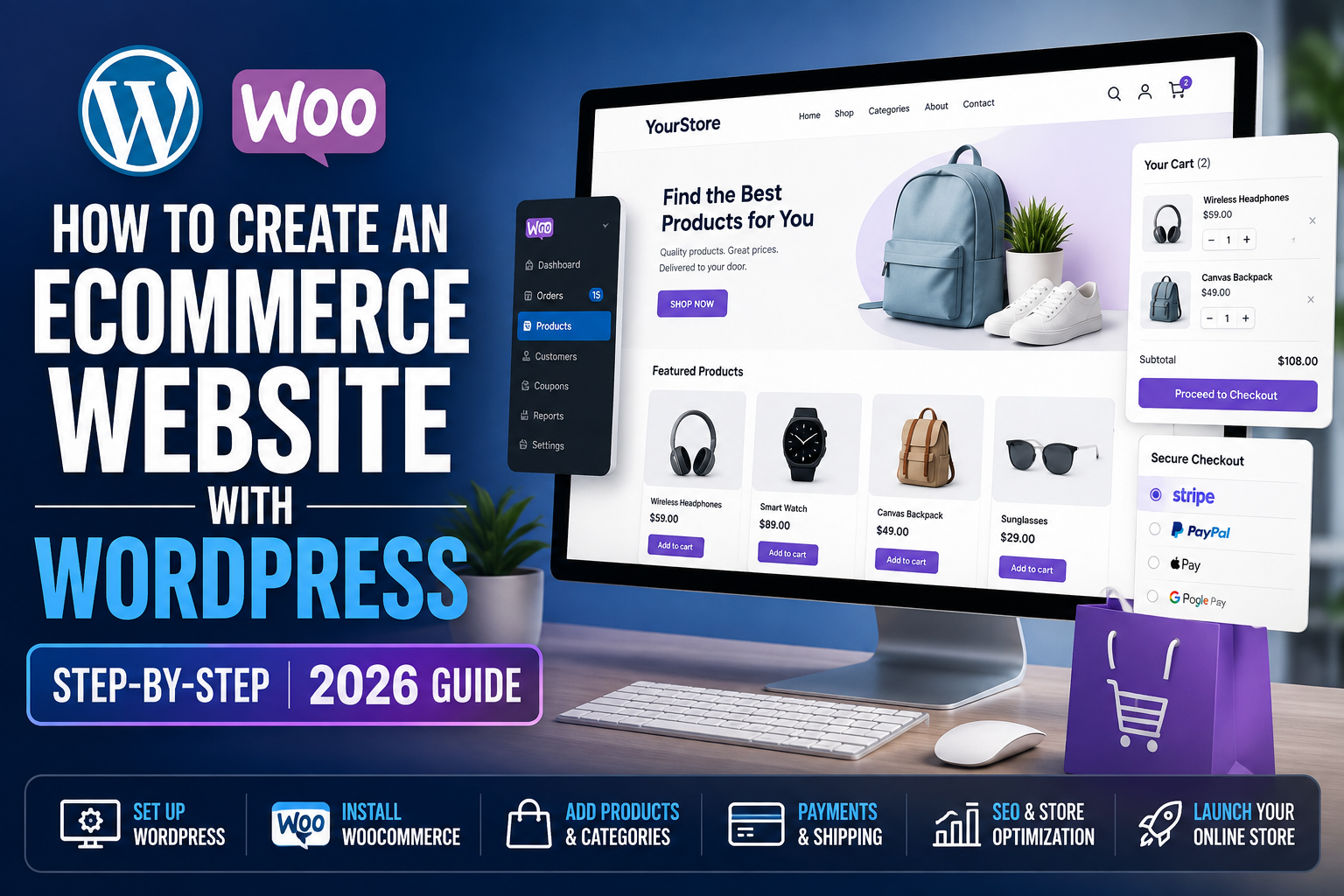
If you want to learn how to create an eCommerce website with WordPress, this step-by-step guide walks you through the full process.
First, you will set up hosting and WordPress. Next, you will install WooCommerce, add products, configure payments and shipping, improve SEO, and prepare your store for launch.
How to Create an eCommerce Website With WordPress Step by Step
WordPress gives you control over your website. In addition, it works with thousands of themes and plugins.
WooCommerce adds the shopping features. For example, it can handle products, orders, customer accounts, coupons, shipping, inventory, and checkout.
Why WordPress and WooCommerce Work Well Together
WordPress manages your pages, blog posts, menus, and content. Meanwhile, WooCommerce manages the online store.
As a result, you can combine content marketing and eCommerce on one website.
Watch the WordPress eCommerce Website Tutorial
First, watch the original tutorial. Afterward, use the updated 2026 written guide below.

Table of Contents
What You Need to Build a WordPress eCommerce Website
Before you begin, gather the basic tools. Fortunately, you only need a few things.
Your domain is your store’s web address.
Hosting keeps your website online.
WordPress powers the main website.
WooCommerce adds eCommerce tools.
How These Tools Work Together
Your domain gives shoppers an address to visit. Meanwhile, hosting stores and serves the website.
WordPress provides the website platform. Finally, WooCommerce adds the online shopping system.
Best Hosting for a WordPress eCommerce Website
First, choose reliable hosting. Your host affects speed, uptime, and the resources available to WooCommerce.
In addition, an eCommerce website may need more resources than a simple blog. Therefore, choose hosting that can grow with your store.
Hostinger for WordPress eCommerce
Hostinger can be a practical starting point for new WordPress users.
- WordPress hosting
- WooCommerce compatibility
- SSL support
- WordPress installation tools
- Beginner-friendly control panel
- Upgrade options
Alternatively, SiteGround is another hosting provider for WordPress and WooCommerce.
- WordPress hosting
- WooCommerce support
- SSL support
- Website management tools
- Performance features
- Customer support
What to Compare Before Choosing Hosting
Before you buy, compare more than the introductory price. For example, review storage, backups, renewal prices, customer support, and available resources.
Choose a Domain for Your WordPress Online Store
Next, choose your domain name. Ideally, it should be short, memorable, and easy to spell.
Keep Your Store Name Flexible
For example, avoid naming the entire business after one product if you plan to expand later. In addition, avoid unnecessary numbers and symbols.
Install WordPress for Your eCommerce Website
After choosing your domain, install WordPress. Fortunately, many hosts provide a simple WordPress installation tool.
As a result, most beginners do not need to upload WordPress manually.
Learn the WordPress Dashboard
Create your homepage and important store pages.
Publish tutorials and SEO content.
Control the theme and navigation.
Add extra features.
Manage website users.
Configure WordPress options.
How to Install WooCommerce on WordPress
Now, install WooCommerce. This plugin adds the main eCommerce features to WordPress.
WooCommerce Online Store Setup
For example, WooCommerce creates product, cart, and checkout functionality. In addition, it can manage orders, inventory, coupons, customer accounts, and shipping.
Configure Your WooCommerce Online Store
Next, complete the WooCommerce setup. First, enter your store location and basic business information.
Then, choose your currency and selling region. After that, review taxes, shipping, and payment settings.
Important WooCommerce Settings
- Store address
- Currency
- Product type
- Tax settings
- Shipping settings
- Payment methods
Design a WordPress eCommerce Homepage
Once the technical setup is ready, focus on your design. Above all, make products easy to discover.
WordPress eCommerce Homepage Example
For example, place your main offer near the top. Next, show your most important categories and products.
Create Product Categories in WooCommerce
Product categories help shoppers browse your store. Therefore, organize products around the way customers actually shop.
Example eCommerce Categories
How to Add Products to a WordPress eCommerce Website
Next, begin adding products to WooCommerce.
Build a Strong WooCommerce Product Page
First, enter a clear product title. Then, add your price and product images.
Afterward, write a useful description. In addition, add inventory, category, shipping, and variation information.
- Product title
- Price
- Product images
- Product description
- Category
- Inventory
- Variations
- Shipping details
WooCommerce Product Page SEO
Instead of listing features only, explain customer benefits. For example, tell shoppers how the product solves a problem.
Optimize Product Images for Your WordPress Store
Online shoppers cannot physically examine a product. Therefore, your images play an important role in the buying decision.
Use Several Product Views
Main product image
Alternate angle
Product in use
Feature detail
Dimensions
What’s included
Add WooCommerce Product Variations
Some products come in several versions. For example, a shirt may have several sizes and colors.
Common Product Variations
Black
White
Blue
Small
Medium
Large
128GB
256GB
512GB
How to Set Up Payments and Shipping in WooCommerce
Next, choose how customers will pay. WooCommerce can work with many payment providers.
WooCommerce Payment Methods
For example, you may offer credit cards or digital wallets. However, payment availability depends on your location.
- Credit cards
- Debit cards
- Digital wallets
- Bank payments
- Local payment options
Configure WooCommerce Shipping
If you sell physical products, configure shipping next. First, decide which locations you will serve.
Choose Your Shipping Rules
Then, choose your rates. For example, you can offer flat-rate shipping, local pickup, or free shipping.
- Shipping zones
- Flat-rate shipping
- Free shipping
- Local pickup
- International shipping
- Delivery estimates
Optimize the WooCommerce Shopping Cart
Your shopping cart should be easy to understand. Therefore, show the most important information clearly.
What Your Cart Should Include
- Product name
- Product image
- Price
- Quantity
- Subtotal
- Shipping
- Total
- Checkout button
Improve Your WooCommerce Checkout
Checkout is one of the most important parts of your store. However, many websites make it more complicated than necessary.
Reduce Checkout Friction
For example, remove unnecessary fields. In addition, keep distractions away from the payment area.
Create Important WordPress eCommerce Pages
Customers want to understand the company behind the store. Therefore, create pages that explain your business and policies.
Pages That Help Build Trust
Explain your business.
Help customers reach you.
Explain data use.
Explain store rules.
Explain delivery.
Explain refunds.
Make Your WordPress eCommerce Website Mobile Friendly
Many customers shop from smartphones. Therefore, your store must work well on smaller screens.
Test the Mobile Shopping Experience
First, check your navigation. Next, test product pages, the cart, and checkout.
- Navigation
- Product search
- Product images
- Product grids
- Add-to-cart buttons
- Shopping cart
- Checkout
How to Optimize a WordPress eCommerce Website for SEO
Once your store works well, focus on SEO. As a result, more potential customers may discover your products through search engines.
Use Search-Friendly Product Titles
Wireless Headphones
Wireless Noise-Canceling Bluetooth Headphones for Travel
Optimize Product and Category Pages
In addition, write unique product descriptions. Also, connect related products, categories, and articles with internal links.
- Keyword research
- SEO product titles
- Unique descriptions
- Optimized category pages
- Internal links
- Descriptive image alt text
- Fast page speed
- Mobile usability
Use Content Marketing to Grow Your WordPress Store
WordPress also lets you publish useful articles. Therefore, you can attract people before they are ready to buy.
Create Content Around Buyer Questions
For example, a coffee store could publish buying guides. In addition, it could create tutorials and product comparisons.
Related WordPress and Online Business Guide
If you want to go beyond a normal store, you can also learn how to create a multi-vendor marketplace website .
You can also browse more WordPress, hosting, SEO, and online business guides on the site.
Test Your WordPress eCommerce Website Before Launching
Finally, test the website like a real customer. Start on the homepage and complete a full order.
Test the Complete Customer Journey
Check the Small Details
In addition, test order emails and coupons. Also, check forms, payment methods, and mobile navigation.
How Much Does a WordPress eCommerce Website Cost?
The total cost depends on the tools you choose. For example, hosting prices and premium extensions vary.
Basic WordPress eCommerce Costs
| Component | Required? | Purpose |
|---|---|---|
| Domain | Yes | Your website address. |
| Hosting | Yes | Keeps your store online. |
| WordPress | Yes | Powers the website. |
| WooCommerce | Yes | Adds eCommerce functionality. |
| Premium Theme | Optional | A free compatible theme can work. |
| Premium Plugins | Optional | Depends on your requirements. |
Can You Build an Amazon-Like Website With WordPress?
Yes, WordPress and WooCommerce can provide many features used by large online stores.
For example, you can create product categories, filters, customer accounts, shopping carts, checkout pages, reviews, and order-management features.
Focus on the Shopping Experience
However, you do not need Amazon’s technical infrastructure to start. Instead, focus on making products easy to search, compare, and purchase.
Advanced WordPress eCommerce Setup and Growth Guide
Once the basic store is working, the next goal is to make the website easier to manage, easier to shop, and more useful to search visitors. A successful WordPress eCommerce website is more than a collection of product pages. It is a complete system that connects product discovery, helpful information, checkout, fulfillment, customer service, analytics, and ongoing optimization. The following strategies can help you strengthen that system without changing the basic WooCommerce workflow explained above.
Plan Your Store Structure Before Adding Hundreds of Products
First, create a simple catalog structure that reflects the way customers search for products. Your primary categories should represent meaningful groups rather than every small product difference. For example, an electronics store might use Laptops, Smartphones, Headphones, Cameras, Smartwatches, and Accessories. Individual characteristics such as storage capacity, color, screen size, or brand can often be handled with attributes and filters.
In addition, keep category names consistent. If one part of the store calls a product type “Wireless Earbuds,” avoid creating another nearly identical category called “Bluetooth Earphones” unless the two pages serve genuinely different purposes. A clean hierarchy makes navigation easier for shoppers and gives you a clearer internal-linking structure for SEO.
Before importing a large catalog, decide how you will name products, SKUs, attributes, image files, and variations. Consistent product data saves time later when you need to filter orders, update prices, export inventory, connect another service, or troubleshoot a product feed.
Create Product Pages That Answer Buying Questions
Next, treat each important product page as a sales and information page rather than a database entry. The page should quickly explain what the product is, who it is for, its most important benefits, the price, available variations, delivery expectations, and the next action. Shoppers should not need to search several parts of the website to understand basic purchasing information.
Moreover, write original descriptions whenever possible. Manufacturer descriptions may provide useful specifications, but your own content can explain practical benefits, compatibility, dimensions, materials, package contents, use cases, limitations, care instructions, and common customer questions. Helpful original information makes the page more valuable to shoppers and prevents the catalog from feeling like a copy of every other retailer using the same supplier feed.
For example, a desk product page can explain the dimensions of the work surface, maximum recommended load, material, assembly requirements, cable-management features, and the type of workspace it suits. A headphone page can discuss connection type, battery life, microphone support, device compatibility, controls, charging method, and whether the design is intended for travel, gaming, exercise, or office use.
Use Product Images to Reduce Customer Uncertainty
Product photography should help shoppers understand what they are buying. Therefore, use a clear primary image and add additional views when they provide useful information. Depending on the product, that may include the front, back, side, packaging, included accessories, close-up details, dimensions, or an image showing the product in use.
At the same time, optimize image file sizes before they slow down the page. Large original photographs can add several megabytes to a product page. Resize images to sensible dimensions, use efficient compression, and allow WordPress to serve appropriate image sizes. Descriptive alternative text should explain meaningful images for accessibility instead of repeating the same keyword on every image.
Build Useful Product Category Pages
Category pages can become important landing pages for shoppers who know the type of product they want but have not chosen a specific model. Consequently, each major category should help visitors compare relevant products. Include clear sorting and filtering when the catalog is large enough to need them, and make sure the filters reflect characteristics customers actually use to make decisions.
A short category introduction can also provide useful context. Explain what shoppers will find in the category and mention important differences they may want to consider. However, avoid adding a long block of repetitive text above the products simply to increase keyword count. The products and shopping controls should remain easy to reach.
Improve WordPress eCommerce Internal Linking
Internal links connect related information across the website. For instance, a buying guide can link to the relevant product category, while a product page can link to a sizing guide, compatibility article, or installation tutorial. Category pages can also link to helpful educational content when that content answers questions customers commonly have before purchasing.
Use descriptive anchor text so visitors understand where a link leads. Instead of repeatedly using “click here,” link meaningful phrases such as “WooCommerce shipping guide” or “best office chairs for small spaces.” Nevertheless, links should remain relevant to the surrounding content. Adding unrelated links solely because a page needs more internal links can make the article less useful.
Optimize Your WooCommerce Search Experience
As the catalog grows, search becomes increasingly important. Customers may search by product type, model number, brand, feature, or problem. Test your store search with real product terminology and common variations. If shoppers use a different phrase from the wording in your catalog, consider whether product titles, descriptions, attributes, or synonyms can make those products easier to discover.
Furthermore, review searches that return no results when your analytics or search tool provides that information. Those searches can reveal missing products, unclear naming, spelling variations, or content opportunities. A customer who searches for something you sell but receives an empty result page may leave even though the right product exists elsewhere in the catalog.
Set Up a Clear Shipping and Delivery Experience
Shipping is part of the buying decision. Therefore, explain where you ship, which methods are available, how rates are calculated, and approximately how long processing and delivery may take. If you offer free shipping above a certain order value, make the threshold easy to understand and ensure that the promotion still makes financial sense for the business.
In addition, separate processing time from carrier transit time when necessary. If your business needs two days to prepare an order before the carrier receives it, customers should understand that distinction. Accurate expectations can reduce support questions and prevent disappointment after purchase.
International stores should also consider customs, duties, restricted destinations, and longer transit times. The exact rules depend on the products and countries involved, so your published policy should reflect the real fulfillment process rather than a generic template.
Create a Customer-Friendly Return Policy
A clear return policy can reduce uncertainty before checkout. Explain the return window, eligible product condition, important exclusions, how customers request a return, who pays return shipping, and how refunds are issued. If some products have different rules because they are customized, downloadable, perishable, or final sale, make those differences clear before purchase.
Moreover, make the policy easy to find from product pages, the footer, or checkout when appropriate. A policy should not promise a process that your business cannot actually support. Review it as fulfillment methods and product categories change.
Test WooCommerce Payments Before Launch
Payment configuration should be tested from the customer’s perspective. Use supported test or sandbox modes where available, and verify successful payments as well as declined or interrupted transactions. Check that WooCommerce creates the correct order status and that the customer receives the expected confirmation.
Additionally, test every payment method you display. A checkout that works with one gateway may still have a problem with another method because of configuration, currency, country restrictions, JavaScript conflicts, or account requirements. Keep payment plugins updated and follow the payment provider’s official security guidance.
Strengthen WooCommerce Security
Security should be part of normal store maintenance. Use HTTPS across the website, strong unique passwords, limited administrator access, and multi-factor authentication where supported. Keep WordPress, WooCommerce, the active theme, and extensions updated after appropriate testing.
Also, remove plugins and themes that are no longer needed. An inactive component still creates maintenance work and may become a risk if it is forgotten. Back up the website regularly and understand how to restore those backups before an emergency occurs.
For a business website, administrator accounts should be given only to people who genuinely need that level of access. Other WordPress roles can often handle content or store tasks without full administrative permissions.
Use a Staging Site for Important Store Changes
A staging site is a private copy of the store where you can test changes before applying them to the live website. This is especially useful for WooCommerce updates, checkout customizations, theme changes, major plugin installations, and performance settings.
However, remember that a live eCommerce store continues receiving orders and customer data. Do not overwrite a current production database with an older staging database without understanding what information would be lost. Use the workflow recommended by your hosting provider and make a current backup before major deployments.
Improve WooCommerce Page Speed Carefully
Store speed affects usability, especially on mobile devices. Start by measuring representative pages rather than testing only the homepage. Check a product page, category page, cart, checkout, and any other important template. A cached homepage may be fast even when dynamic shopping pages need optimization.
Common performance opportunities include compressing images, reducing unnecessary third-party scripts, removing unused plugins, using appropriate caching, optimizing the database, and selecting hosting resources that match the store’s workload. Nevertheless, do not enable every optimization option at once. Some aggressive JavaScript or caching settings can interfere with carts, checkout, account pages, or payment systems.
After each significant performance change, test the complete shopping journey. Speed improvements are useful only when the store continues to function correctly.
Make the Store Accessible and Easy to Navigate
Accessibility benefits customers with different abilities and can also improve general usability. Use readable text sizes, sufficient contrast, clear form labels, descriptive buttons, and logical headings. Make sure important controls can be reached with a keyboard and that focus indicators remain visible.
Likewise, checkout errors should explain what needs to be corrected. A red outline without a useful message may leave the shopper unsure about what went wrong. Product variations, quantity controls, menus, and filters should also remain understandable on small screens.
Set Up Analytics for Your WordPress Store
Analytics can show how visitors move through the store. Instead of looking only at total traffic, measure actions that connect to business results. Useful eCommerce measurements can include product views, add-to-cart activity, checkout starts, purchases, revenue, average order value, refunds, and conversion rate.
As a result, you can identify where customers leave the buying process. If many visitors view products but rarely add them to the cart, investigate the offer, product information, price, images, shipping expectations, and trust signals. If customers frequently start checkout but do not finish, review checkout usability, payment options, unexpected costs, and technical errors.
Connect the Store to Google Search Console
Google Search Console can help you understand how pages perform in Google Search. After the site is ready for indexing, verify the property, submit the appropriate XML sitemap, and monitor indexing reports. You can also review search queries, impressions, clicks, and the pages that receive organic visibility.
Furthermore, use URL inspection when troubleshooting an important page. If a product or category is not indexed, check whether the page is crawlable, internally linked, canonicalized correctly, and useful enough to deserve a place in the search results. Avoid creating large numbers of nearly identical pages solely to target slight keyword variations.
Build an eCommerce Content Strategy Around Search Intent
Informational content can attract potential customers before they search for a specific product. A strong content plan starts with questions related to the products you sell. Buying guides, comparisons, tutorials, troubleshooting articles, compatibility guides, and educational resources can all be useful when they answer genuine customer needs.
For example, a store selling home-office products might publish guides about choosing a desk size, setting up an ergonomic workstation, comparing chair materials, organizing cables, or selecting a monitor stand. Those articles can naturally connect readers to relevant categories and products without forcing a sales pitch into every paragraph.
Meanwhile, avoid publishing dozens of shallow articles that repeat the same advice with slightly different keywords. It is often better to create one comprehensive resource and update it as the topic changes.
Optimize eCommerce Pages Without Keyword Stuffing
Search optimization should make a page clearer, not harder to read. Include the primary topic naturally in the title, main heading, introduction, relevant subheadings, and body where it fits. Then use related terminology that helps explain the subject. For this guide, phrases such as WordPress eCommerce website, WooCommerce store, online store, product pages, WordPress hosting, checkout, payments, shipping, and eCommerce SEO all belong naturally because they describe parts of the setup process.
However, repeating the exact same keyword in every paragraph is unnecessary. Focus on answering the user’s next question. A comprehensive tutorial earns its length by covering useful steps, decisions, examples, and troubleshooting—not by repeating a phrase hundreds of times.
Keep SEO Titles and Meta Descriptions Accurate
Each important page should have a descriptive title that reflects its actual content. Product pages normally benefit from a product-specific title, while categories should describe the collection. Blog articles can target informational searches that relate to the store’s products.
Meta descriptions should summarize the page and encourage the right visitor to click without making unsupported promises. Although search engines may choose a different snippet, a well-written description remains useful for editorial consistency.
Manage Duplicate URLs and Product Variations
Online stores can generate many URLs through filters, sorting, tracking parameters, pagination, search pages, and variations. Therefore, pay attention to which URLs you link internally and which versions you want search engines to treat as primary.
WooCommerce and SEO plugins can handle many common canonical settings, but store owners should still review the rendered pages. If several URLs display substantially the same main content, a consistent canonical and internal-linking strategy can reduce confusion. Do not block important product resources without understanding the effect on crawling and rendering.
Use Structured Product Information Consistently
Product information should agree across the visible page, WooCommerce data, feeds, and any structured data generated by your plugins. Prices, availability, product identifiers, and review information should not contradict one another. If an SEO plugin or WooCommerce already generates product schema, inspect the output before adding another schema plugin that may duplicate it.
Above all, do not invent ratings, reviews, prices, or stock information for search engines. Structured data should represent information that is genuinely supported by the page and store.
Create a Better Mobile eCommerce Experience
Mobile shoppers need more than a responsive layout. Test whether navigation menus open correctly, search is easy to reach, product images are usable, variation selectors fit the screen, and add-to-cart controls are easy to tap. Then test the cart and checkout without relying on a desktop preview.
In addition, watch for popups, sticky banners, chat widgets, and advertising elements that cover important controls on small screens. A promotion that looks harmless on desktop can block half of a phone screen and make checkout frustrating.
Use Customer Reviews and Questions to Improve Product Content
Genuine customer feedback can reveal information missing from your product descriptions. Reviews may show that shoppers care about sizing, assembly, durability, compatibility, packaging, or a feature that the original description barely mentions. Support questions can provide similar insights.
Therefore, review recurring questions and improve the product page when the answer would help future shoppers. If customers repeatedly ask whether an accessory works with a specific model, add a clear compatibility note rather than answering the same question individually forever.
Never fabricate reviews or testimonials. Authentic feedback is useful precisely because it reflects real customer experience.
Create an Email Strategy for Store Visitors
Email can help bring interested visitors back to the store. Give people a clear reason to subscribe, such as useful product education, new-product announcements, restock alerts, or offers that match the brand. Follow applicable consent and email marketing requirements, and make unsubscribing straightforward.
After purchase, transactional messages should focus on information the customer needs: order confirmation, payment status, shipping updates, delivery information, and account details. Marketing messages should not make essential order information difficult to find.
Prepare for Product and Traffic Growth
A small WooCommerce store can begin with a straightforward setup, but growth changes technical requirements. More products can increase database work, while more visitors and orders can increase server demand. Additional extensions can also add scheduled tasks, API calls, scripts, and database tables.
Consequently, monitor the store rather than waiting for a major slowdown. Review hosting resource usage, error logs, database size, backup duration, checkout performance, and scheduled tasks. Upgrade infrastructure when real usage demonstrates the need.
Document Your eCommerce Operations
Documentation becomes valuable as soon as more than one person works on the store. Write down how products are added, how images are prepared, how orders are fulfilled, how refunds are handled, how coupons are created, and who is responsible for updates. Record important integrations and where their account credentials are managed securely.
This process also helps a solo store owner. Months after configuring a complicated shipping rule or product import, a short internal note can save hours of investigation.
Review the Store Regularly After Launch
Finally, schedule periodic reviews of the complete website. Check important pages for broken links, outdated screenshots, obsolete pricing statements, old policies, unavailable products, and plugins that are no longer needed. Run test orders and verify that transactional emails still arrive.
Review organic search performance as well. Pages with impressions but few clicks may need clearer titles or better alignment with search intent. Pages that once performed well but decline over time may need updated information, stronger internal links, or a more useful explanation of the topic.
Most importantly, continue improving the store based on evidence. Customer questions, analytics, search data, support requests, returns, and conversion behavior can all show where the next improvement should happen. Building a WordPress eCommerce website is a step-by-step project, but maintaining a useful and competitive store is an ongoing process.
Complete WordPress eCommerce Launch Checklist
Review Products and Store Information
Before opening the store to customers, check product titles, descriptions, prices, variations, SKUs, inventory, images, categories, shipping dimensions, and tax settings. Make sure sale prices have the correct dates and that out-of-stock products behave the way you expect. Check several products from each major category instead of assuming one successful test represents the entire catalog.
Complete Several Test Orders
Next, place test orders from beginning to end. Use different products, quantities, shipping destinations, coupons, and payment methods when possible. Verify the order total before payment and confirm that taxes, shipping, discounts, and product variations appear correctly. After the order is placed, review the WooCommerce order record and customer confirmation email.
Check Every Important Page on Mobile
Then, open the homepage, categories, products, cart, checkout, account area, contact page, and policy pages on a real phone. Confirm that menus work, text is readable, tables do not overflow, buttons remain tappable, and no floating element blocks important content. Repeat the checkout test on mobile because a store can work perfectly on desktop while still losing phone shoppers.
Review SEO and Indexing Settings
Before launch, confirm that the production website is allowed to be indexed. Review page titles, primary headings, canonical URLs, XML sitemap output, important internal links, and robots settings. Remove temporary test pages that should not appear in search results. If you changed URLs from an older website, create appropriate redirects from the old addresses to their closest relevant replacements.
Verify Policies and Contact Information
Finally, make sure customers can find accurate contact, shipping, return, privacy, and terms information. Check that business email addresses work and that contact forms deliver messages. Policies should describe the way your business actually operates. Once these checks are complete, your WordPress eCommerce website will be in a much stronger position for a professional launch.
How to Manage a WooCommerce Store After You Start Selling
Create a Simple Order Management Routine
Once orders begin arriving, create a repeatable routine for processing them. Start by reviewing the order status, payment status, customer information, products purchased, shipping method, and any customer notes. If you sell physical products, make sure the fulfillment team can quickly see which items must be picked, packed, and shipped. A consistent process reduces mistakes as order volume grows.
In addition, decide when an order moves from processing to completed. The exact workflow depends on what you sell. A downloadable product may require little manual fulfillment, while a physical product can involve inventory checks, packing, shipping labels, tracking information, and delivery confirmation. Document the process so the same type of order is handled consistently.
Keep Inventory Information Accurate
Inventory accuracy is important because customers expect the website to reflect what can actually be purchased. Configure WooCommerce stock management according to your business model. Set low-stock thresholds, decide whether backorders are allowed, and review products that repeatedly reach low inventory. If another platform or warehouse also manages inventory, determine which system is the main source of truth.
Moreover, test what happens when the final unit of a product is purchased. The store should not continue accepting orders unless backorders are intentionally enabled. Variable products need special attention because each size, color, or configuration may have its own stock quantity.
Manage Coupons Without Hurting Profitability
WooCommerce coupons can support promotions, but every discount should have a business purpose. You can create percentage discounts, fixed-cart discounts, or product-specific promotions depending on your configuration. Set expiration dates, minimum order amounts, product restrictions, and usage limits when those controls support the campaign.
Before publishing a coupon, calculate how the discount interacts with product margin, shipping costs, payment fees, and other promotions. Then place a test order to make sure the coupon works only where intended. A promotion that accidentally stacks with another discount can reduce profit much more than expected.
Improve Customer Accounts and Post-Purchase Service
Customer accounts can make repeat purchases easier by giving shoppers access to order history, addresses, and other account information. However, forcing every first-time customer to create an account can add friction. Review WooCommerce account and privacy settings and choose an approach that fits your store and applicable requirements.
After purchase, make it easy for customers to understand what happens next. Confirmation messages should identify the order, summarize purchased products, and explain the expected fulfillment process. If tracking is available, provide it through a reliable workflow. Clear post-purchase communication can reduce “Where is my order?” support requests.
Build a Customer Support Knowledge Base
As questions repeat, turn the answers into reusable website content. A knowledge base or FAQ can explain shipping times, returns, product setup, sizing, compatibility, warranty procedures, account access, and other common issues. Link customers directly to the most relevant answer rather than forcing them to search through a long generic page.
Support content can also reveal opportunities to improve product pages. If buyers repeatedly ask the same pre-purchase question, add that information where the buying decision happens. Over time, this makes the store more self-service without removing the option to contact a real person when help is needed.
How to Improve WordPress eCommerce Conversion Rates
Start With the Product Offer
Conversion optimization begins with the offer itself. A polished website cannot fully compensate for a product customers do not want, unclear value, uncompetitive pricing, or expensive delivery. Review why someone should choose the product, what problem it solves, and what information a buyer needs before feeling comfortable ordering.
For example, compare the questions customers ask before buying with the information displayed near the add-to-cart button. Important details such as compatibility, dimensions, delivery timing, return eligibility, or included accessories should not be buried when they strongly influence the decision.
Make Calls to Action Easy to Find
The main purchase action should be visually clear without overwhelming the page with competing buttons. On a product page, shoppers should be able to identify the price, select required options, choose a quantity, and add the item to the cart without confusion. If a product is unavailable, explain the status rather than leaving a button that fails.
On mobile devices, check whether long descriptions or image galleries push essential buying controls too far down the page. The best layout depends on the product, but the next action should remain understandable at every screen size.
Reduce Surprises Before Checkout
Unexpected costs can make customers reconsider a purchase. Whenever practical, communicate shipping rules, taxes, subscription terms, or other important charges before the final checkout step. If shipping depends on location, provide a clear way for customers to estimate it.
Likewise, make promotional conditions understandable. If free shipping requires a minimum order, state the threshold clearly. If a coupon applies only to selected products, explain that limitation instead of allowing customers to discover it through an unexplained error.
Use Trust Information Where It Helps
Trust is built through accurate information and consistent experiences. Make contact details, policies, payment information, and customer-service options easy to find. Genuine reviews can provide additional context when they reflect real purchases or customer experiences.
Avoid filling the page with unsupported security claims, fake scarcity, fabricated reviews, or countdown timers that restart for every visitor. Short-term pressure tactics can damage the credibility of the store. Clear product information and reliable service provide stronger long-term trust signals.
Study the Checkout Funnel
Analytics can help you compare product views, add-to-cart actions, checkout starts, and completed purchases. A large drop between two stages gives you a place to investigate. For example, a strong add-to-cart rate followed by a weak checkout completion rate may point toward shipping costs, payment problems, form friction, or technical errors.
Do not assume every abandoned cart has the same cause. Some shoppers are comparing prices or saving products for later. Instead, look for patterns across devices, traffic sources, products, and checkout steps. Use those patterns to decide which improvements are worth testing.
WordPress eCommerce Maintenance Schedule
Weekly Store Checks
A weekly review can focus on operational issues. Check recent orders, failed payments, low-stock products, customer messages, backups, and any WordPress or WooCommerce notices that require attention. Visit the live website and test important navigation links. If the store changes frequently, review product prices and promotional banners as well.
In addition, look for unusual errors or sudden performance changes. A problem discovered during a routine check is usually easier to solve than one discovered by customers during a major promotion.
Monthly Technical Checks
Each month, review plugin and theme maintenance, security settings, administrator accounts, database growth, page performance, and broken links. Check that backups are completing successfully and that you still know how to restore them. Remove integrations or accounts the business no longer uses.
Also, inspect the store on several representative devices. Browser updates, plugin changes, and new content can introduce layout problems that were not present at launch. Test a product, cart, checkout, and account workflow instead of looking only at the homepage.
Quarterly Content and SEO Reviews
Every few months, review high-traffic categories, products, and articles for accuracy. Update information that has changed and improve pages that no longer answer customer questions well. Search performance data can help identify pages gaining impressions, pages losing visibility, and queries that reveal useful new topics.
Meanwhile, check internal links when products are discontinued or categories are reorganized. Redirect important old URLs to the closest relevant replacement when a permanent change is necessary. Avoid redirecting every removed product to the homepage because that often creates a poor experience for both shoppers and search engines.
Annual Business and Technology Review
At least once a year, evaluate whether the current hosting plan, theme, payment providers, shipping services, extensions, analytics setup, and operational processes still fit the business. A store can accumulate tools over time, and some may no longer provide enough value to justify their cost or complexity.
Finally, review the broader customer journey. Compare the store you have now with the one you originally planned. Identify which categories drive revenue, which content attracts qualified visitors, which support issues repeat, and where customers encounter friction. Use those findings to create the next year’s improvement priorities.
Plan for the Next Stage of Your WordPress Online Store
Add Features Only When They Solve a Real Need
WordPress makes it easy to install another plugin whenever you see an interesting feature. However, every new extension adds another component to maintain. Before adding wish lists, advanced filters, loyalty programs, subscriptions, product bundles, marketplace tools, or personalization systems, identify the customer or business problem the feature is meant to solve.
If the benefit is unclear, keep the store simpler. A focused website with reliable core functionality is often easier to operate than a feature-heavy store with overlapping plugins and inconsistent interfaces.
Prepare for Additional Sales Channels
As the business grows, you may decide to sell through marketplaces, social platforms, physical locations, or additional websites. Before connecting another channel, determine how products, prices, inventory, taxes, orders, and customer information will synchronize. Duplicate manual data entry becomes difficult to manage at scale.
Product identifiers and consistent catalog data become especially important at this stage. A well-organized WooCommerce catalog is easier to connect to feeds and external systems than a store where the same attributes are named differently across products.
Protect the Customer Experience While Scaling
Growth can expose weaknesses that were invisible when order volume was low. Fulfillment delays, inventory errors, slow support responses, and website performance problems become more expensive as traffic increases. Therefore, improve processes alongside marketing rather than driving more customers into an operation that cannot serve them reliably.
Monitor customer feedback and operational capacity during major promotions. If order volume increases quickly, communicate realistic processing times and prioritize accuracy over promises the business cannot meet.
Continue Learning From Store Data
The most useful optimization ideas often come from the store’s own data. Search queries reveal what people want to find. Product analytics reveal what they consider. Orders reveal what they actually buy. Returns reveal where expectations were not met. Support messages reveal what remains unclear.
Bringing those signals together gives you a practical roadmap. Instead of changing the website based only on trends, improve the pages, products, and processes that affect real customers. That approach can make your WordPress eCommerce website more useful, easier to operate, and better prepared for sustainable growth.
Final Store Owner Review Before You Scale
Before investing heavily in traffic, review the website as if you were a first-time customer. Search for a product, open a category, compare options, read a product description, add an item to the cart, calculate shipping, and complete checkout. Record anything that feels confusing, slow, repetitive, or uncertain. Then repeat the process on a phone.
Next, review the experience from the business side. Confirm that orders are easy to process, inventory updates correctly, customer emails are delivered, refunds can be handled, and backups are available. Make sure important accounts are secured and that the people managing the store understand their responsibilities.
Finally, review the site from a content perspective. Important pages should be accurate, useful, and easy to reach through navigation or internal links. Product descriptions should help people make decisions, while educational articles should answer real questions connected to the products you sell. Continue improving those fundamentals as the store grows.
Start Building Your WordPress eCommerce Website
First, choose your hosting. Then, install WordPress and WooCommerce.
WordPress eCommerce Frequently Asked Questions
Is WordPress good for an eCommerce website?
Yes. WordPress and WooCommerce can work well for many online stores. In addition, they provide strong control over content, design, and SEO.
Is WooCommerce free?
Yes, the core WooCommerce plugin is free. However, hosting and optional extensions can add extra costs.
Do I need coding skills to build a WordPress store?
No. For example, many basic store tasks can be completed directly through the WordPress dashboard.
Can WooCommerce sell digital products?
Yes. WooCommerce supports digital products as well as physical products.
Can I build a large eCommerce website with WordPress?
Yes. However, larger stores may require stronger hosting, caching, database optimization, and additional security.
Final Thoughts on Creating an eCommerce Website With WordPress
Build Your Store One Step at a Time
Learning how to create an eCommerce website with WordPress becomes easier when you follow a clear process. First, choose your hosting and install WordPress.
Next, install WooCommerce and configure your store. After that, add products and set up your payments and shipping.
Optimize and Improve After Launch
Before launching, test the entire buying process. In addition, check your store on mobile devices.
Finally, keep improving your SEO, product pages, content, and website speed as your traffic grows.