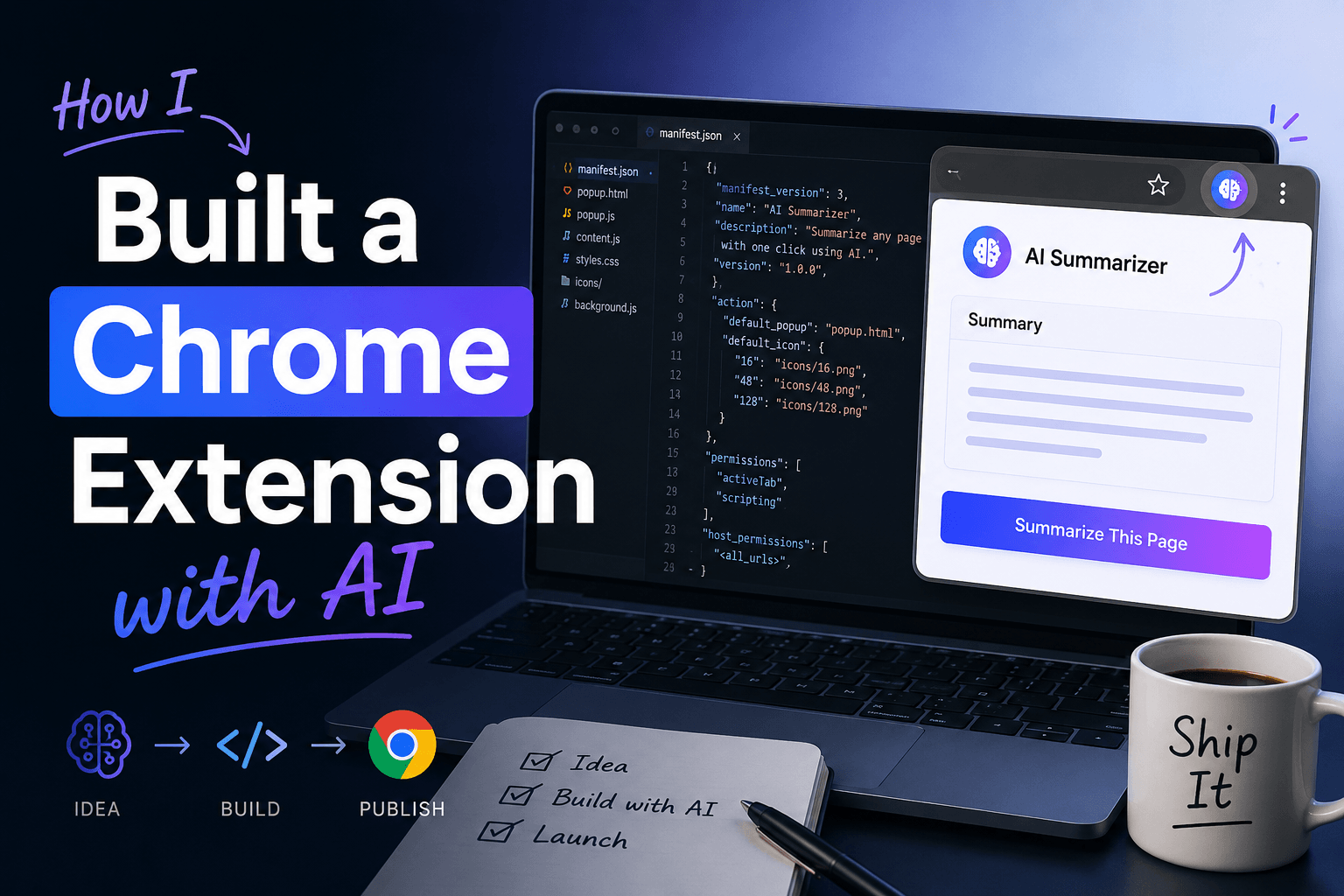
Learn how to build a Chrome extension with AI using a practical Manifest V3 workflow. We will plan a useful idea, create the files, add features one at a time, test locally in Chrome, debug problems, review permissions, and prepare the extension for publishing.
To build a Chrome extension with AI, start with one small problem instead of asking an AI assistant to generate a large application at once. Define the minimum useful version, create a Manifest V3 structure, build the interface, add one JavaScript feature, test it in Chrome, and then continue feature by feature. AI can accelerate planning, coding, explanation, and debugging, but you should still review permissions, privacy, security, and every important change.
Start With a Problem Worth Solving
Before you build a Chrome extension with AI, decide what repetitive problem the extension should remove. For example, a marketer might repeatedly search for affiliate links, brand colors, reusable text, research resources, or frequently visited websites.
Instead of scattering that information across documents and browser tabs, a lightweight extension could keep it beside the browser toolbar. Therefore, your first version does not need dozens of features. A small tool that removes one annoying task can already be useful.
How a Basic Chrome Extension Is Structured
A beginner extension can use only a few files. Understanding their jobs first makes AI-generated code much easier to review.
quick-resource-vault/
├── manifest.json
├── popup/
│   ├── popup.html
│   ├── popup.css
│   └── popup.js
└── icons/
    ├── icon16.png
    ├── icon32.png
    ├── icon48.png
    └── icon128.png
Later, a more advanced extension can add a service worker, content scripts, an options page, a side panel, authentication, cloud storage, or external APIs. However, keeping version one small makes debugging easier.
Tools You Need to Build a Chrome Extension With AI
You do not need an expensive development environment. In addition, you can begin without a backend if the first version stores its information locally.
How to Build a Chrome Extension With AI Step by Step
Define the minimum useful version
For a simple resource organizer, start with only a few behaviors: save the current page, add a note, store useful links, keep brand colors, save reusable text, and copy information with one click.
Ask AI to plan before writing code
First, ask for the smallest practical architecture rather than hundreds of lines of code.
Create the Manifest V3 file
The manifest tells Chrome how the extension is configured. For example:
{
  "manifest_version": 3,
  "name": "Quick Resource Vault",
  "version": "1.0.0",
  "description": "Save useful links, colors and reusable snippets.",
  "permissions": ["storage", "activeTab"],
  "action": {"default_popup": "popup/popup.html"},
  "icons": {
    "16": "icons/icon16.png",
    "32": "icons/icon32.png",
    "48": "icons/icon48.png",
    "128": "icons/icon128.png"
  }
}
Only request permissions the extension actually needs. As a result, the project is easier to explain and users have fewer unnecessary permission concerns.
Build a simple interface
Next, ask AI for semantic HTML and lightweight CSS before adding complicated behavior.
Add one working feature
Now implement one behavior at a time. For instance, the following function can capture the active tab and store its title and URL locally:
async function saveCurrentPage() {
  const [tab] = await chrome.tabs.query({
    active: true,
    currentWindow: true
  });

  if (!tab || !tab.url) return;

  const item = {
    id: crypto.randomUUID(),
    title: tab.title || "Untitled Page",
    url: tab.url,
    createdAt: Date.now()
  };

  const result = await chrome.storage.local.get("savedLinks");
  const links = result.savedLinks || [];
  links.unshift(item);

  await chrome.storage.local.set({ savedLinks: links });
}
Because this change solves only one problem, failures are easier to isolate.
Add validation and useful data tools
After saving links works, add other small features. For example, validate a HEX color before storing it:
async function addBrandColor(value) {
  const color = value.trim().toUpperCase();

  if (!/^#[0-9A-F]{6}$/.test(color)) {
    throw new Error("Enter a valid HEX color.");
  }

  const result = await chrome.storage.local.get("brandColors");
  const colors = result.brandColors || [];

  if (!colors.includes(color)) {
    colors.unshift(color);
    await chrome.storage.local.set({ brandColors: colors });
  }
}
The AI Coding Workflow I Recommend
The quality of your workflow matters as much as the AI tool. In other words, precise tasks usually produce code that is easier to understand and test.
Give AI one clear objective
Avoid vague requests such as “make my extension better.” Instead, define the exact behavior you want and tell the assistant to preserve unrelated functionality.
Review the proposed changes
Before accepting code, check which files the AI wants to modify and why. Then, test immediately after each meaningful feature.
Give AI the exact error
Ask AI to explain unfamiliar code
How to Test Your Extension in Chrome
- Open Chrome.
- Open the extensions management page.
- Enable Developer mode.
- Click Load unpacked.
- Select your extension project folder.
- Pin the extension to the toolbar.
- Open the popup and test each feature.
Whenever you modify the extension files, reload the development extension before testing the new code.
- Does the popup open correctly?
- Can you save, edit, and remove an item?
- Does saved data remain after the popup closes?
- Do long URLs break the design?
- Are duplicates and empty inputs handled?
- Does search work correctly?
- Are errors visible in the developer console?
- Does the extension request only necessary permissions?
Common Mistakes When Building a Chrome Extension With AI
Asking AI to build everything at once
Large one-shot prompts can generate a lot of code quickly. However, they also create more code to review and more places for bugs to hide. Build a small feature, test it, and then continue.
Adding too many features
AI makes feature generation fast, but more functionality does not automatically create a better extension. Therefore, validate the core problem before adding accounts, synchronization, subscriptions, or advanced AI features.
Never reviewing the code
Even beginners should ask for explanations of code involving permissions, authentication, payments, external APIs, user data, or secrets.
Ignoring privacy
Know what information the extension collects, where it is stored, and whether it leaves the browser. If sensitive data is unnecessary, do not collect it.
Ignoring failure cases
Real users will leave fields empty, paste unexpected values, click repeatedly, and lose connectivity. Consequently, test failure paths as well as the ideal workflow.
Reusable AI Prompts for Chrome Extension Development
Preparing Your Extension for Publishing
Once the extension works reliably in your own browser, review the project before distribution. First, remove temporary test data and unnecessary debugging code. Next, review every requested permission, test a clean installation, create correctly sized icons and screenshots, and document your privacy practices.
- Check the extension version number.
- Remove unused permissions.
- Test from a clean Chrome profile.
- Verify all external APIs and services.
- Prepare accurate screenshots and descriptions.
- Review data handling and privacy disclosures.
- Make sure secrets are not embedded in client-side code.
Can You Make Money With a Chrome Extension?
A useful extension can support a business, but monetization works best after the product solves a real problem. Depending on the project, possible models include freemium features, a companion SaaS subscription, lead generation, or relevant affiliate recommendations.
Nevertheless, keep the user experience first. An extension that exists mainly to display promotions is unlikely to create the same long-term value as a tool people genuinely want to keep installed.
How Much Does an AI-Assisted Chrome Extension Cost?
A local-only extension can require very little infrastructure. By contrast, a more advanced product may need hosting, a database, authentication, cloud storage, an AI API, analytics, email, or payment processing. For that reason, avoid adding infrastructure until the product actually requires it.
What Matters Most
Small, precise prompts usually work better than repeatedly asking AI to redesign an entire project. At the same time, you remain responsible for product decisions, privacy, testing, permissions, and security. AI can accelerate implementation, but it does not remove the need to understand what your extension does.
Most importantly, build something you would actually use. A real problem gives every technical concept a purpose, which makes learning easier.
Frequently Asked Questions
Can a beginner build a Chrome extension with AI?
Yes. AI can help explain the project structure, generate small features, and diagnose errors. However, beginners should still test every important change and learn what permissions and browser APIs the extension uses.
Do I need to know JavaScript?
You can start while learning, but understanding basic JavaScript becomes increasingly valuable because most Chrome extension behavior is implemented with JavaScript and Chrome APIs.
What is Manifest V3?
Manifest V3 is the current Chrome extension platform format used to declare an extension’s metadata, permissions, scripts, actions, and other capabilities.
Can AI publish my extension automatically?
AI can help prepare files, descriptions, testing checklists, and publishing steps. Nevertheless, you should personally review the final extension, permissions, privacy practices, store requirements, and release package.
Should I put an AI API key inside a Chrome extension?
Generally, secrets should not be embedded directly in client-side extension code because users can inspect the packaged files. If an application requires a protected secret, use an appropriate server-side architecture and authentication design.
Ready to build your first Chrome extension with AI?
Start with one repetitive problem, define the smallest useful solution, and build one testable feature at a time.
Chrome Extensions Documentation →Editorial note: Chrome extension APIs and Chrome Web Store requirements can change. Review Google’s current Chrome Extensions documentation and publishing policies before releasing an extension. No unconfirmed affiliate tracking links have been added to this article.